





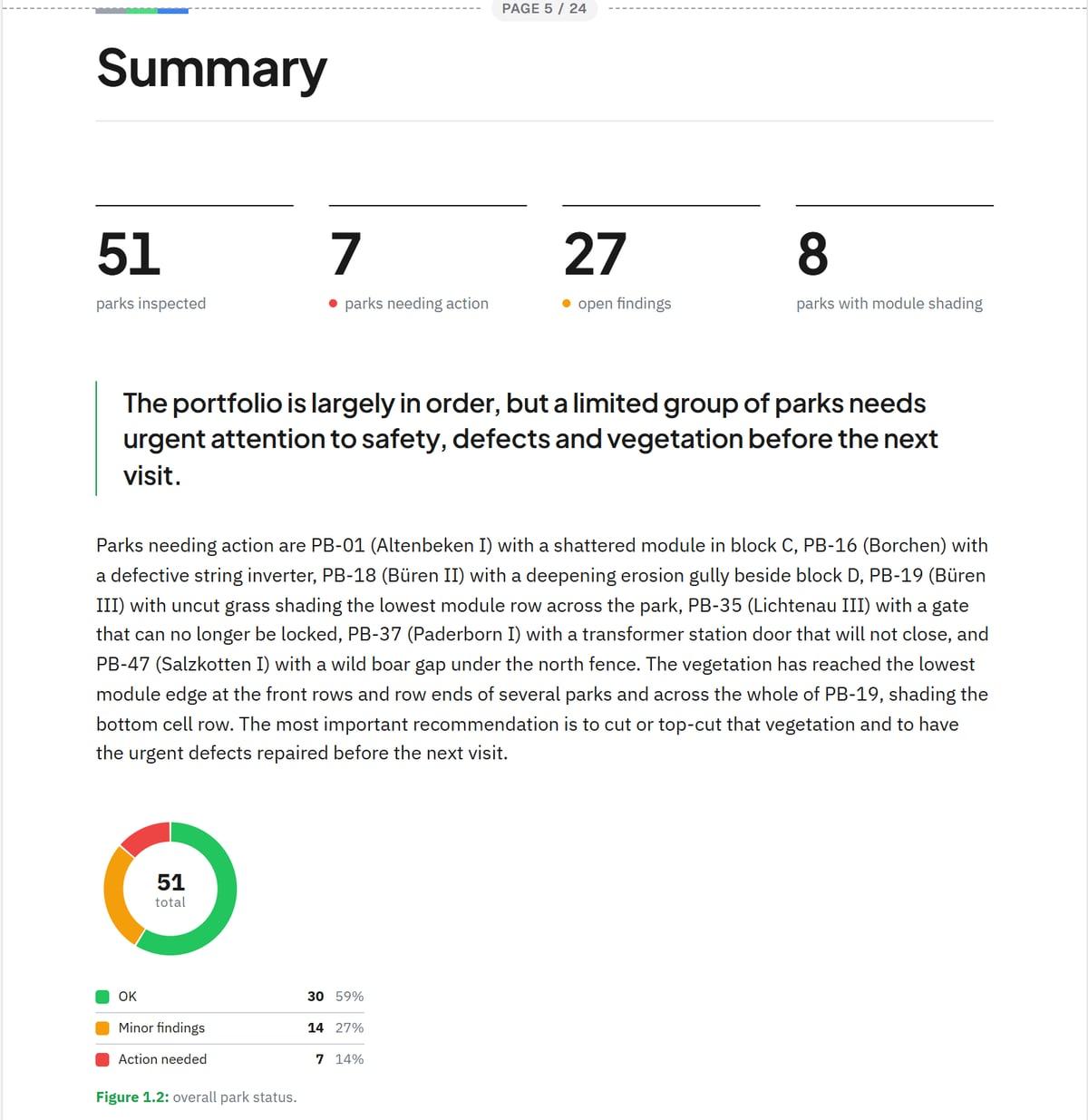
Tables, photos and map figures fill from the data; an assistant drafts the text.
Edit inspection data like a spreadsheet, review every change before you save, and keep the full version history per feature.
Field data always needs a second pass in the office: a mistyped number, a species name spelled three ways, a batch of trees that should all carry the same advice. Doing that in a form, one feature at a time, is slow. Exporting to Excel and importing again cuts the link to the inspection history and invites a whole new class of errors.
The Features tab of a project is an Excel-like grid, one tab per layer, with the layer's form fields as columns. Type, paste from Excel, fill down, filter and bulk-edit; nothing is written until you press Save. Each save becomes a correction inspection in the feature's history, so office corrections are as traceable as field submissions.
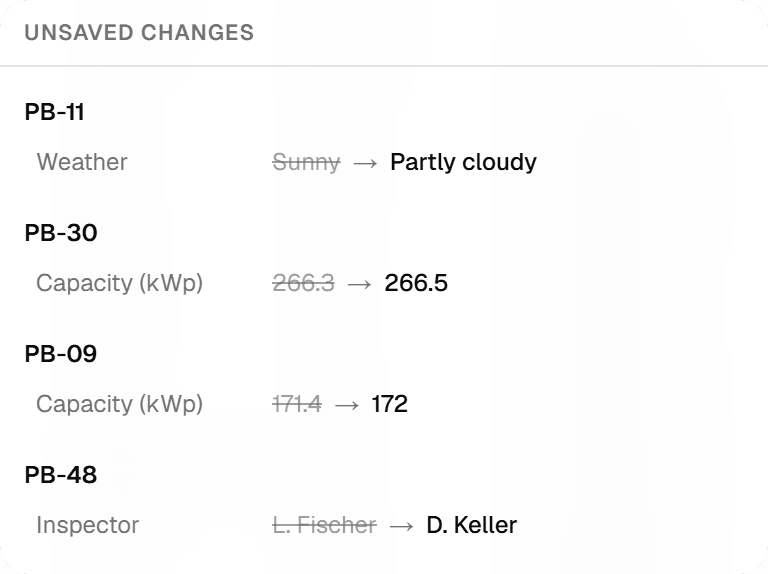
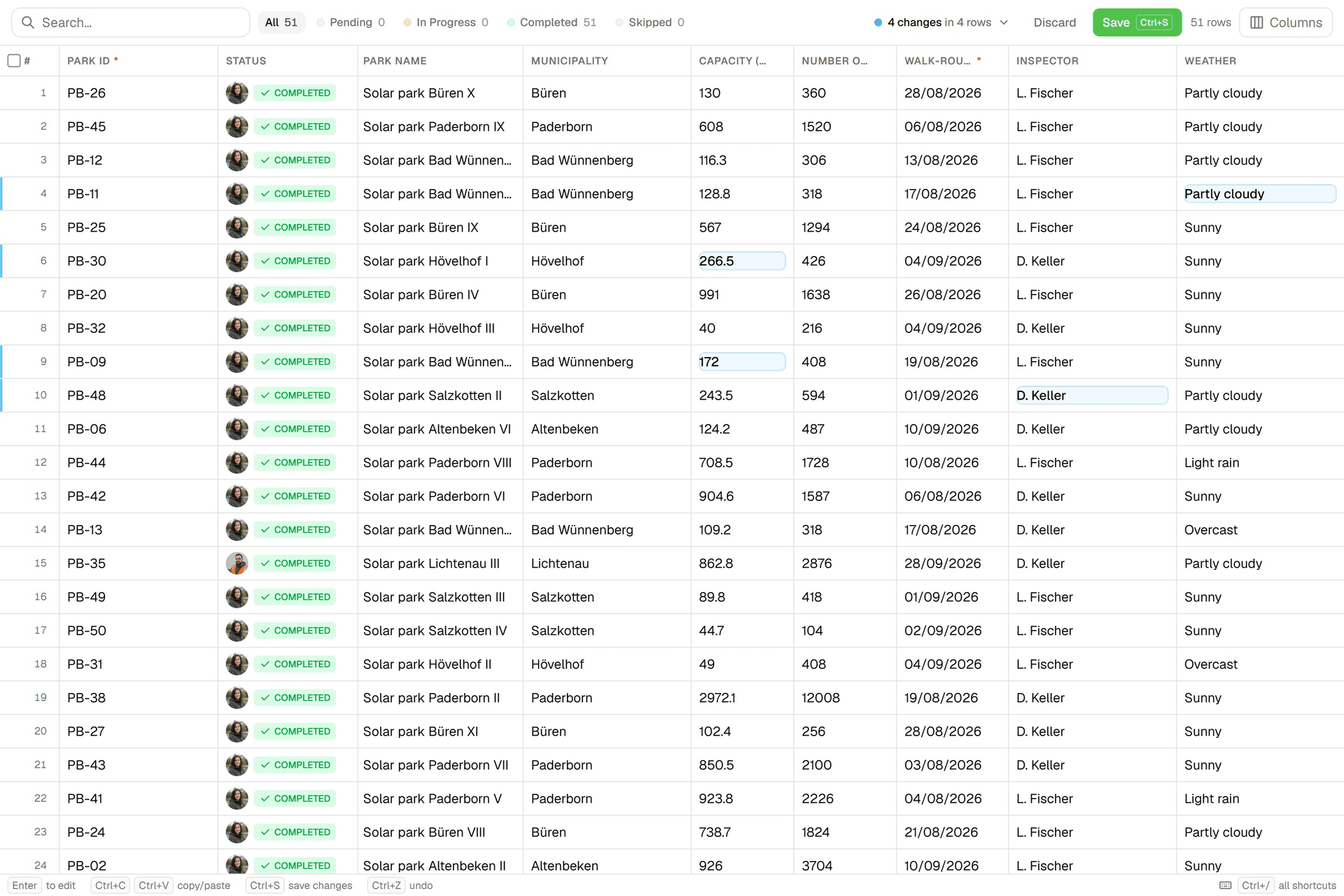
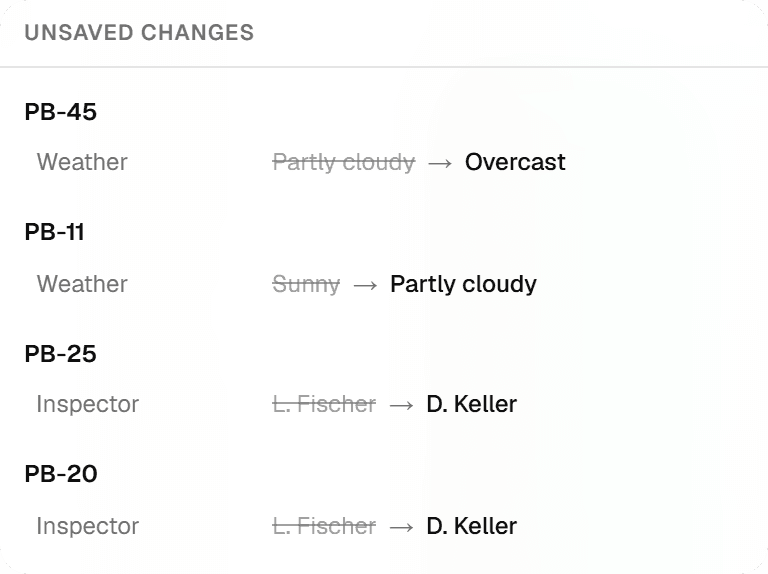
The grid gives you the spreadsheet without leaving the project. Arrow keys, Tab, Enter, type-to-replace, Excel-compatible copy and paste with Ctrl+C and Ctrl+V, Ctrl+D to fill down, Ctrl+Z to undo. Changes are staged: a change-count pill opens a review popover that lists every cell old → new with a revert per row, and Save (or Ctrl+S) writes them as one append-only correction per row, with conflict detection if the row changed elsewhere in the meantime.
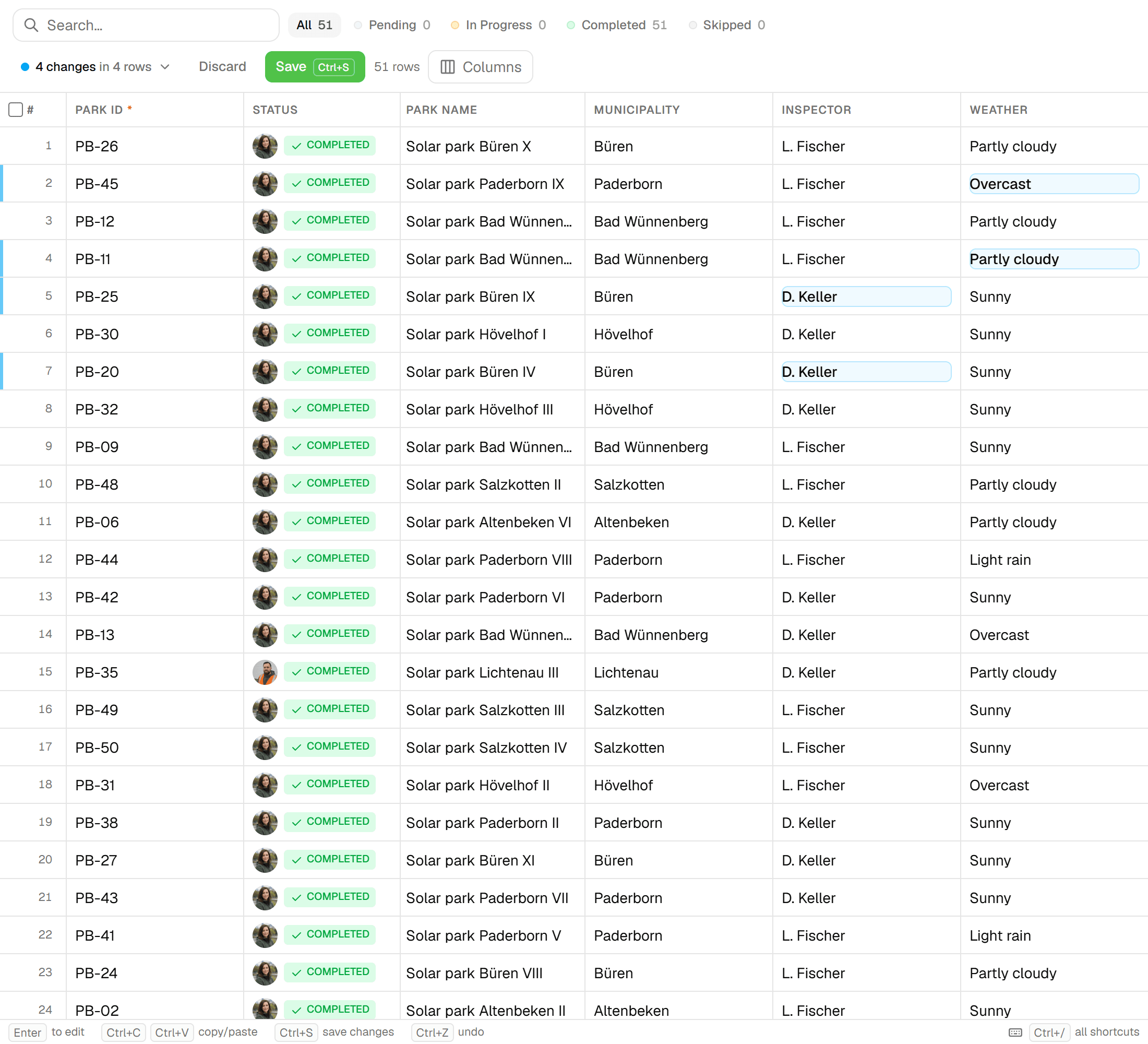
Edit in place with the keyboard, paste to and from Excel, and fill down with Ctrl+D.
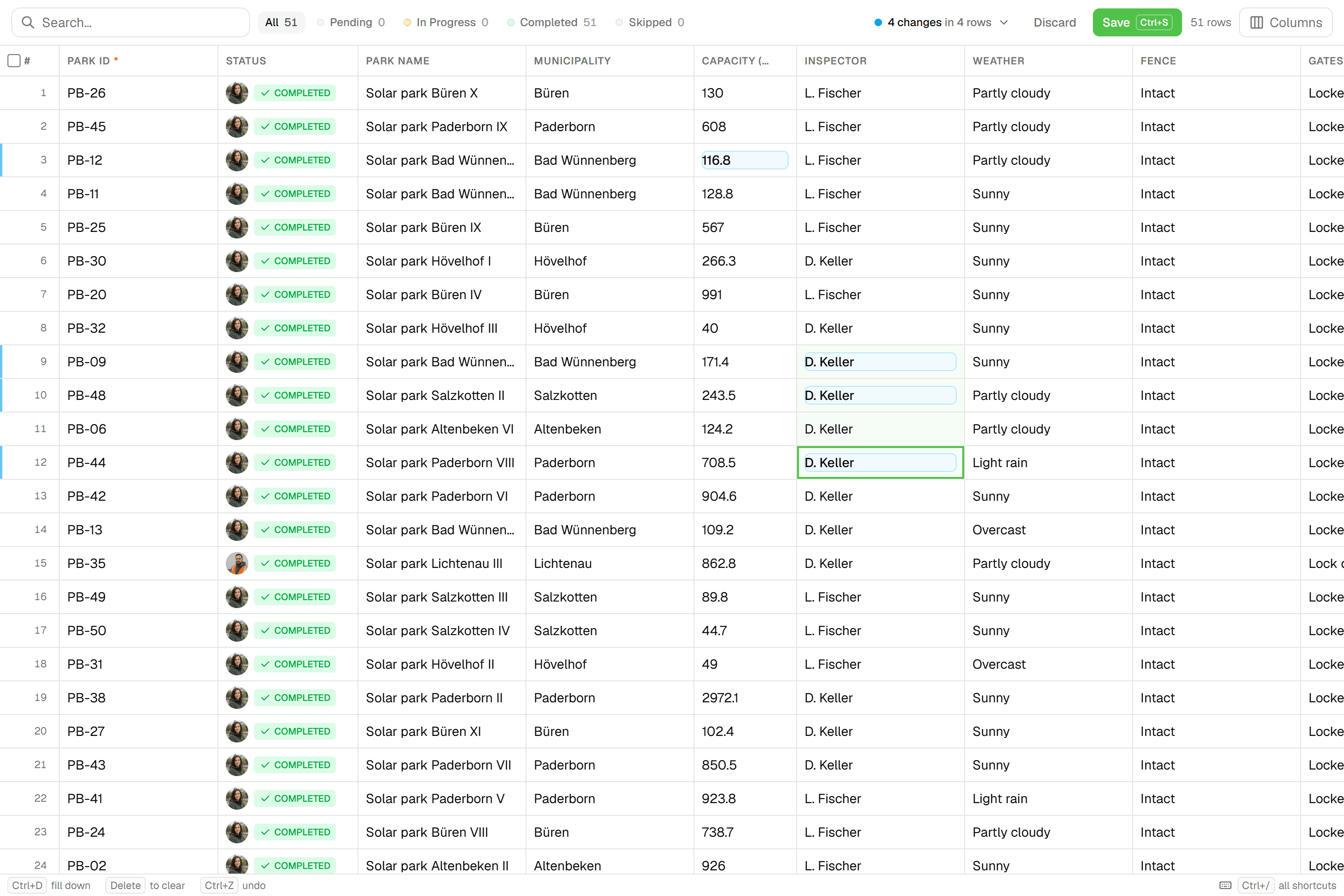
Open the Features tab, pick a layer and edit cells in place: arrows and Shift+arrows to select, Enter or type-to-replace to edit, Delete to clear, Ctrl+C and Ctrl+V to move tab-separated cells to and from Excel, Ctrl+D to fill down. The grid is virtualised and loads 500 rows per page. Press Ctrl+/ for the full keyboard overlay.
Nothing is written until you save: every edited cell, old and new, with a revert per row.
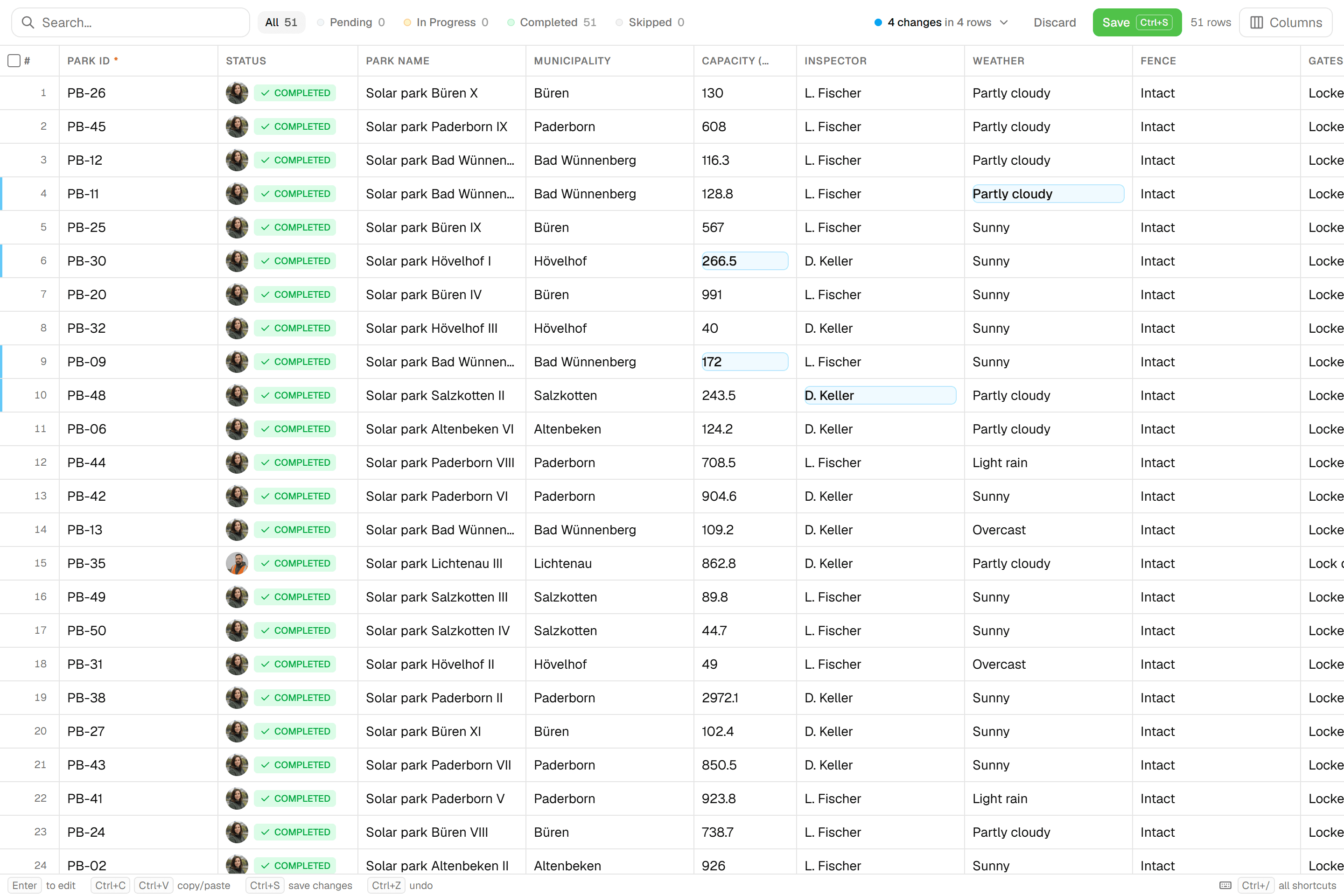
Nothing is written until you save. The change-count pill opens a review popover listing every edited cell, old → new, with a revert per row. 'Discard' is undoable from its toast, unsaved edits survive a reload, and leaving with changes asks Save & leave, Discard & leave or Stay.
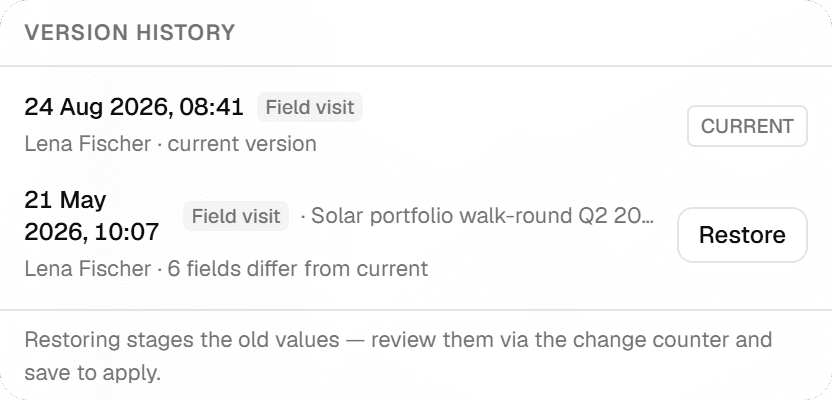
Each save is a correction on the record; 'Version history' restores an earlier snapshot.
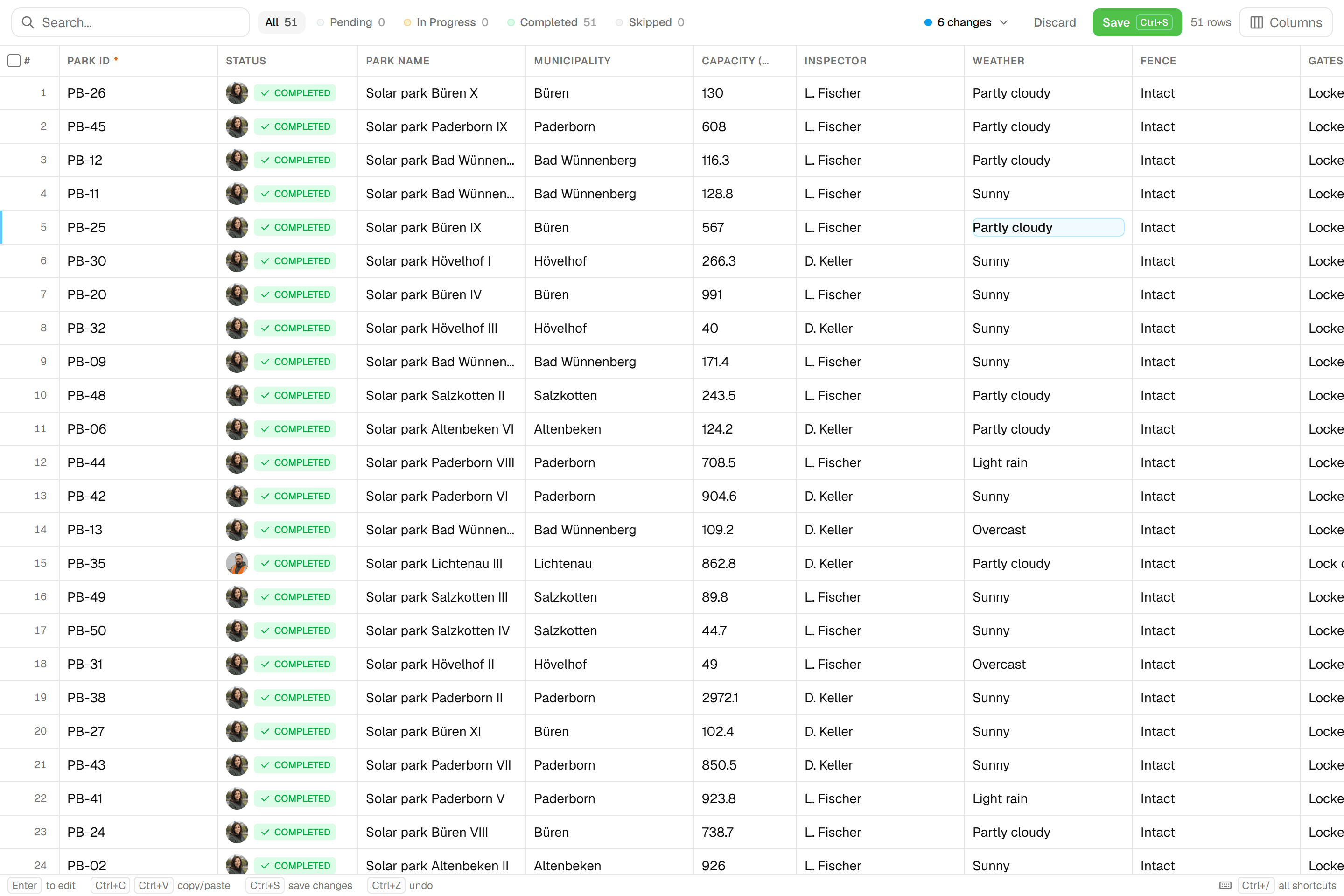
Save or Ctrl+S writes each changed row as one correction inspection, marked as corrected in the grid and kept apart from field submissions, with optimistic-lock conflict detection and a result per row. The per-row 'Version history' popover lists every snapshot with a diff count and 'Restore', which stages the old values for review; nothing is written until you save again.
Open the Features tab, pick a layer and edit cells in place: arrows and Shift+arrows to select, Enter or type-to-replace to edit, Delete to clear, Ctrl+C and Ctrl+V to move tab-separated cells to and from Excel, Ctrl+D to fill down. The grid is virtualised and loads 500 rows per page. Press Ctrl+/ for the full keyboard overlay.
Filter the layer to Completed, sort out typos and inconsistent values, fill a column down and save once. Each row becomes a correction in the feature's history with who and when, kept apart from the original field submission.
Select the rows and use the bulk bar to set one field value across all of them, or to change their status to Pending, In Progress or Skipped (with a reason). Completed is only earned by submitting an inspection, never set by hand.
For sequential ID fields, 'Renumber all features' reorders the numbers in 'Geographic walking order', with a live route preview on a mini-map: the route starts north-west and always continues to the nearest feature, so numbers follow streets and rows. Overwrites are recorded as corrections; features that are already correct are untouched.
The grid photo editor opens a row's photos in a dialog with free-aspect crop and Rotate 90°. Saving creates a new storage object; the original is never mutated.
No. Every save is append-only: a new correction inspection is merged onto the row's base snapshot, and the previous values stay in the version history with 'Restore'. If the row was changed elsewhere in the meantime, the optimistic lock reports a conflict for that row instead of overwriting it.
No. Required fields are relaxed in the grid so you can correct a row partially. A row only flips to Completed once every required field is filled; otherwise it moves from Pending to In Progress.
Yes. Copy and paste use tab-separated text, so a block of cells moves between Excel and the grid in either direction. Each paste or fill-down is one undo step: Ctrl+Z to undo, Ctrl+Shift+Z to redo.
Status chips (All, Pending, In Progress, Completed, Skipped) and per-column filters: All / Empty / Filled, 'Contains…' for text, Min and Max for numbers, a searchable checklist for select options and a yes/no filter for yes/no fields. Column visibility is remembered per project and layer in your browser.
From the layer's inspection form. Each project layer binds its own form, so the grid's columns are that form's fields, and a layer's rows load without geometry, 500 per page. A save covers up to 100 rows per call, each with its own result: saved, validation error or conflict.
Tables, photos and map figures fill from the data; an assistant drafts the text.
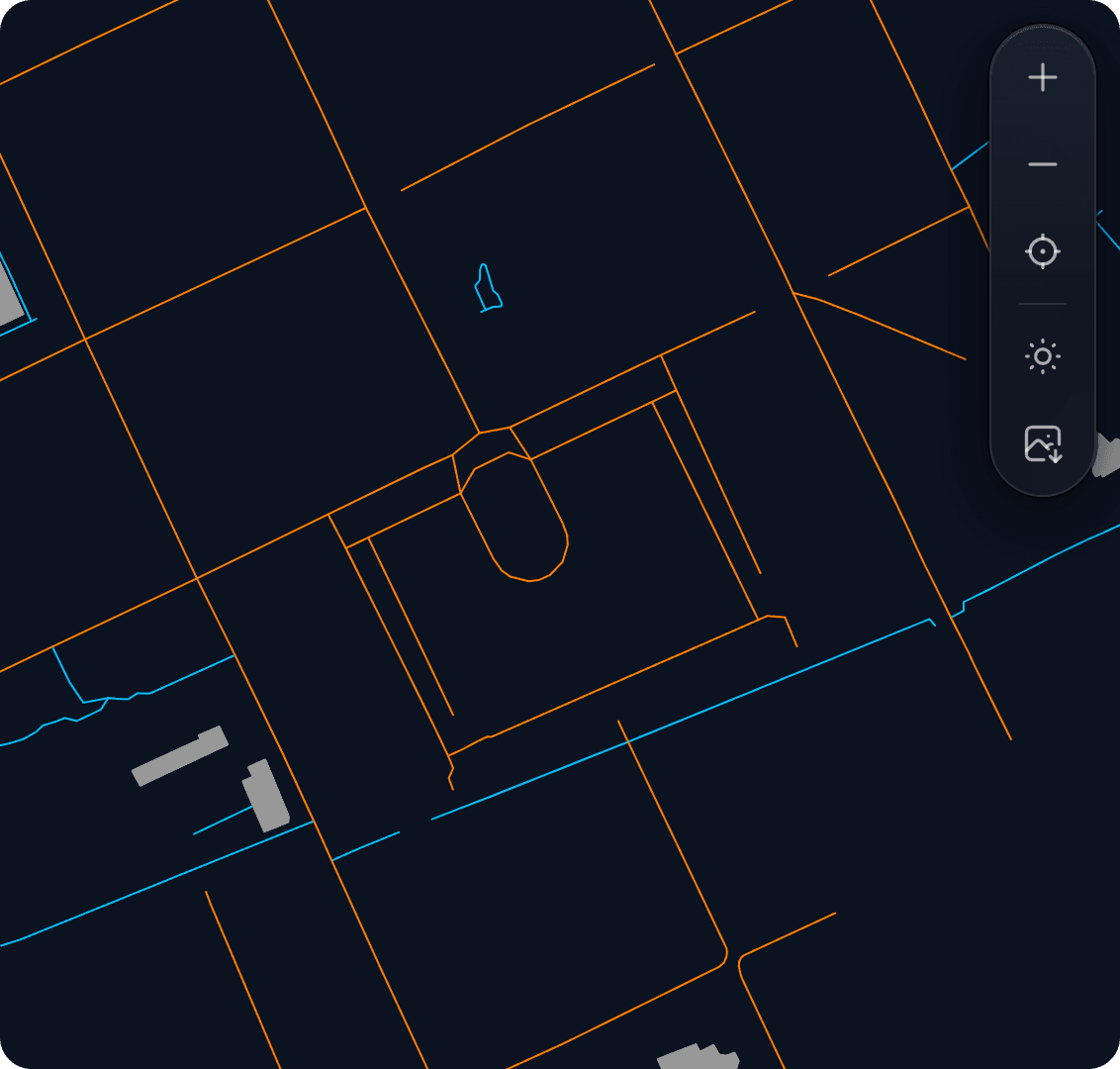
A CAD drawing with layers, labels and rings, previewed in the browser first.
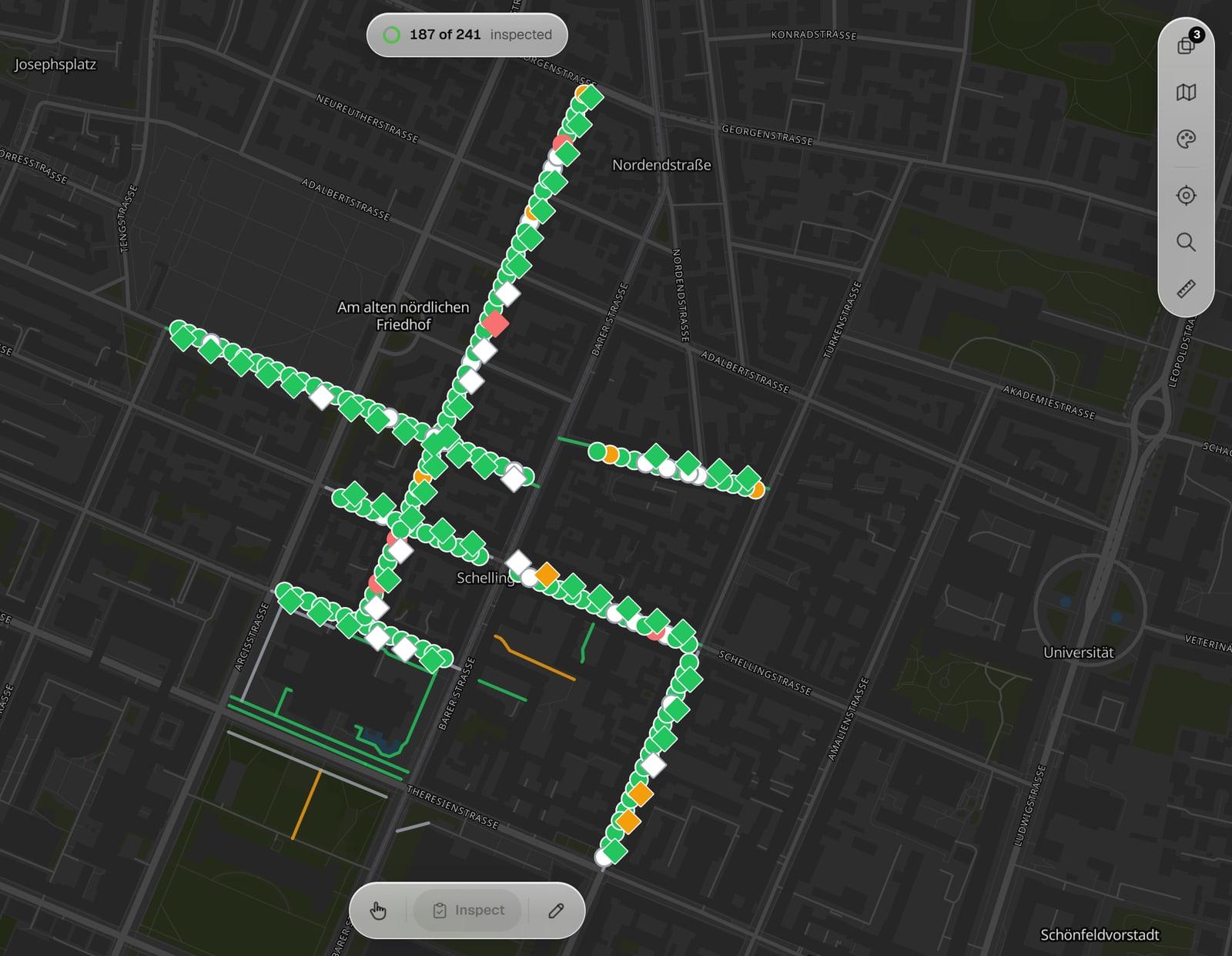
Place points, lines and areas under a crosshair that snaps to the drawing.
Set up a project and see your own data on the map. Free for 14 days, no credit card.
No credit card requiredFree trial included