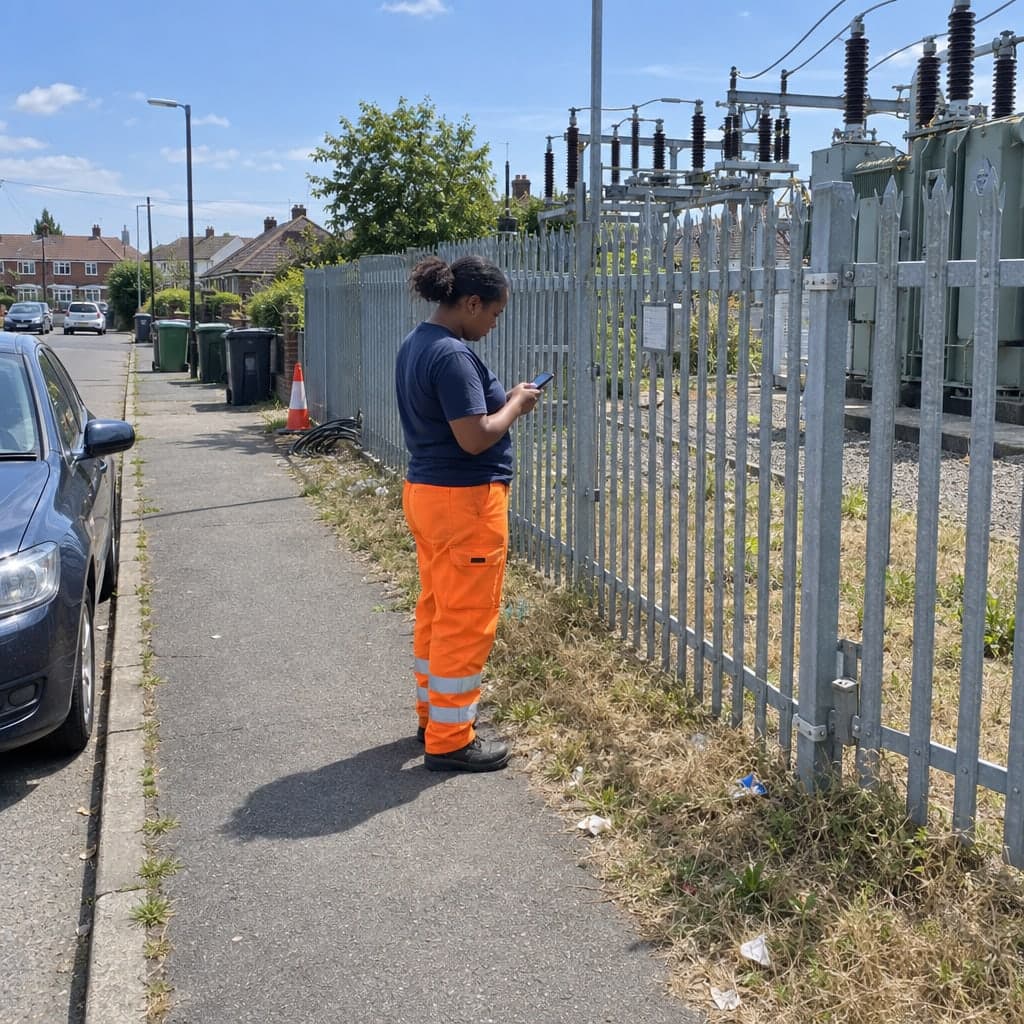
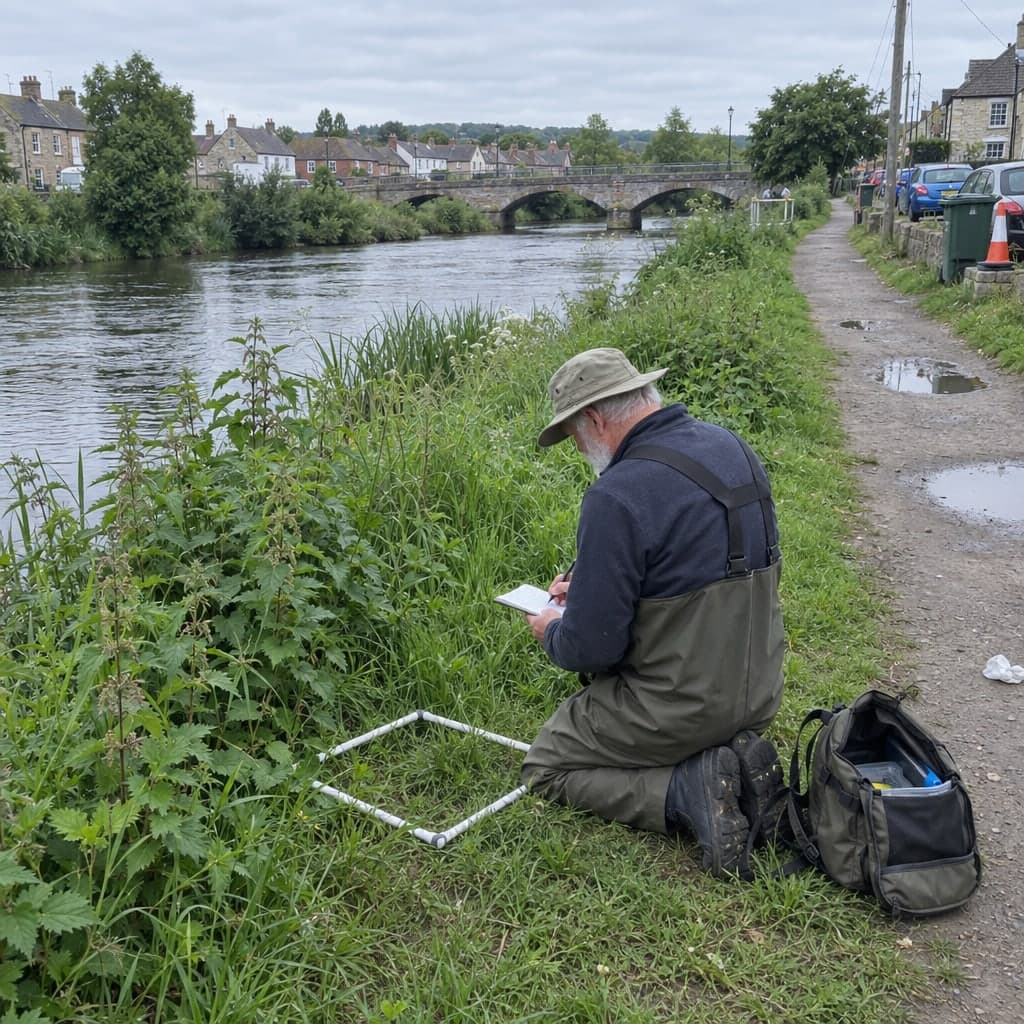

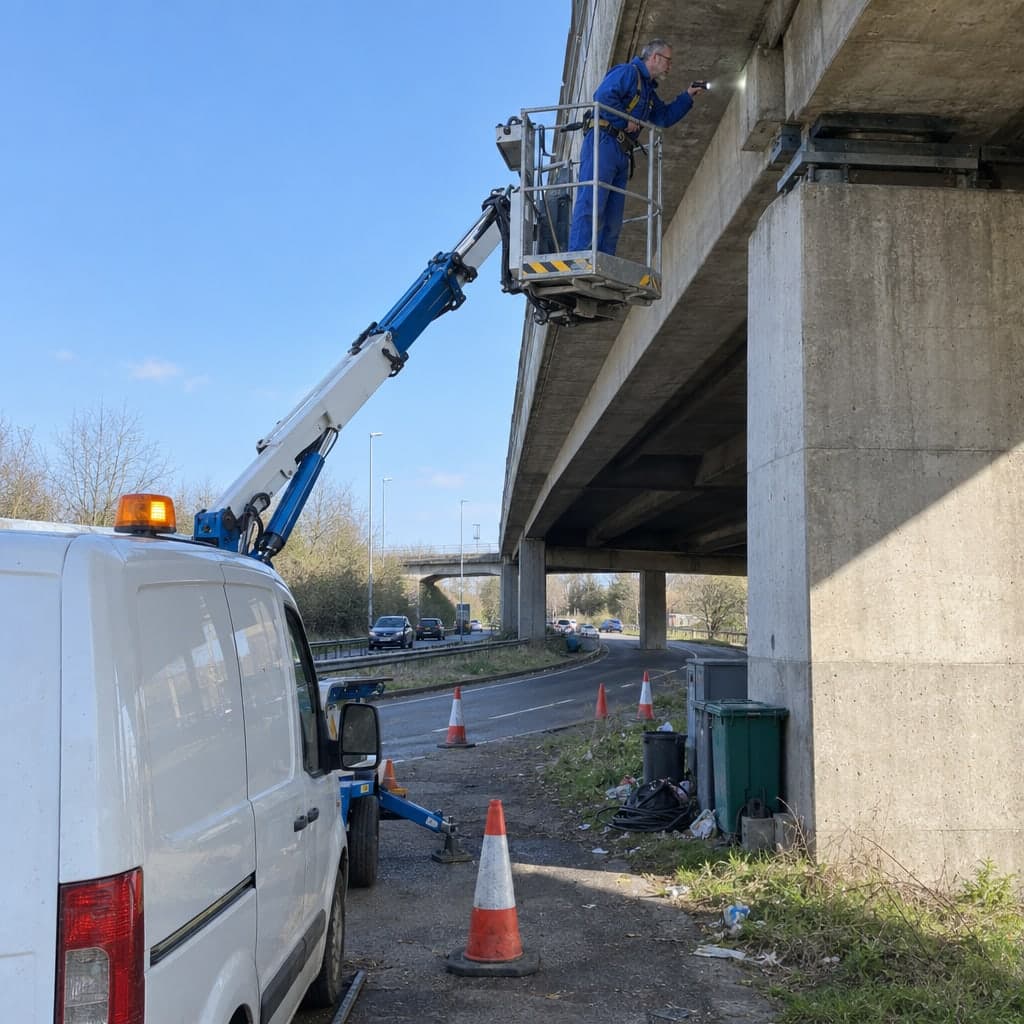
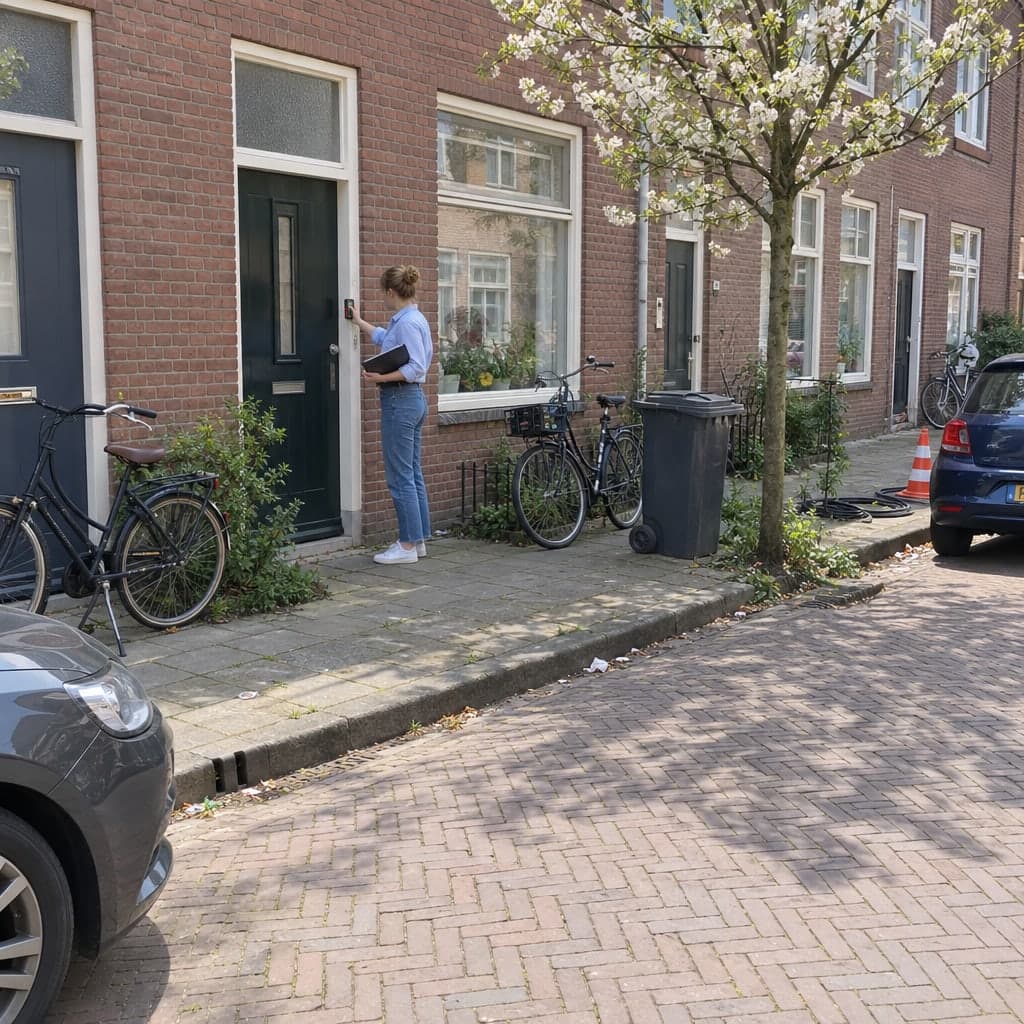
Inspection photos attached to the record
Every photo belongs to a field on an inspection of a feature, never to a folder.
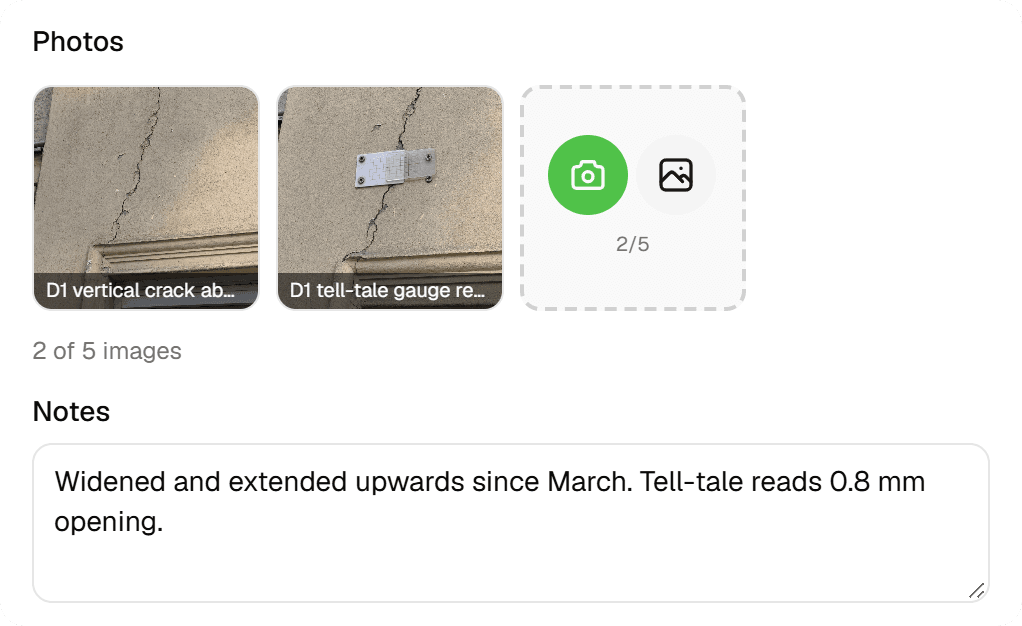
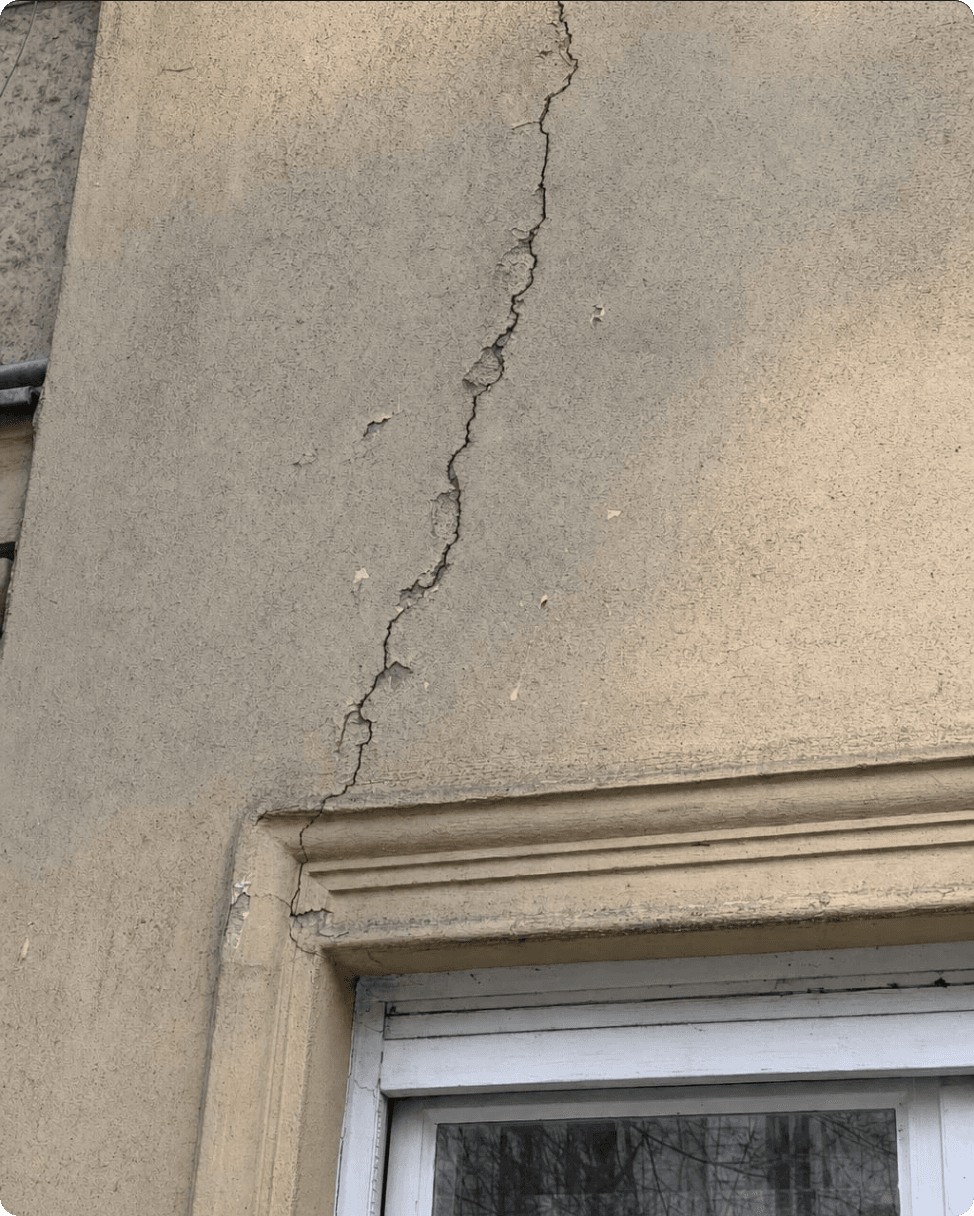
An image field in a form takes up to 5 photos from the camera or a file picker. They're compressed on the device, stored with the inspection, and come back out in reports, in the spreadsheet view and, as links, in every data export. 'Which tree is this?' is answered by where the photo lives, not by its file name.
The problem
IMG_4521.jpg is not evidence
Photos taken with the phone's camera app end the day in a roll of hundreds, separate from the form they belong to. Matching them to objects means comparing timestamps and backgrounds, and the ones that can't be matched are useless for a report or a dispute. A photo only becomes evidence when it is unambiguously tied to the object and the observation.
The solution
The photo is part of the submission
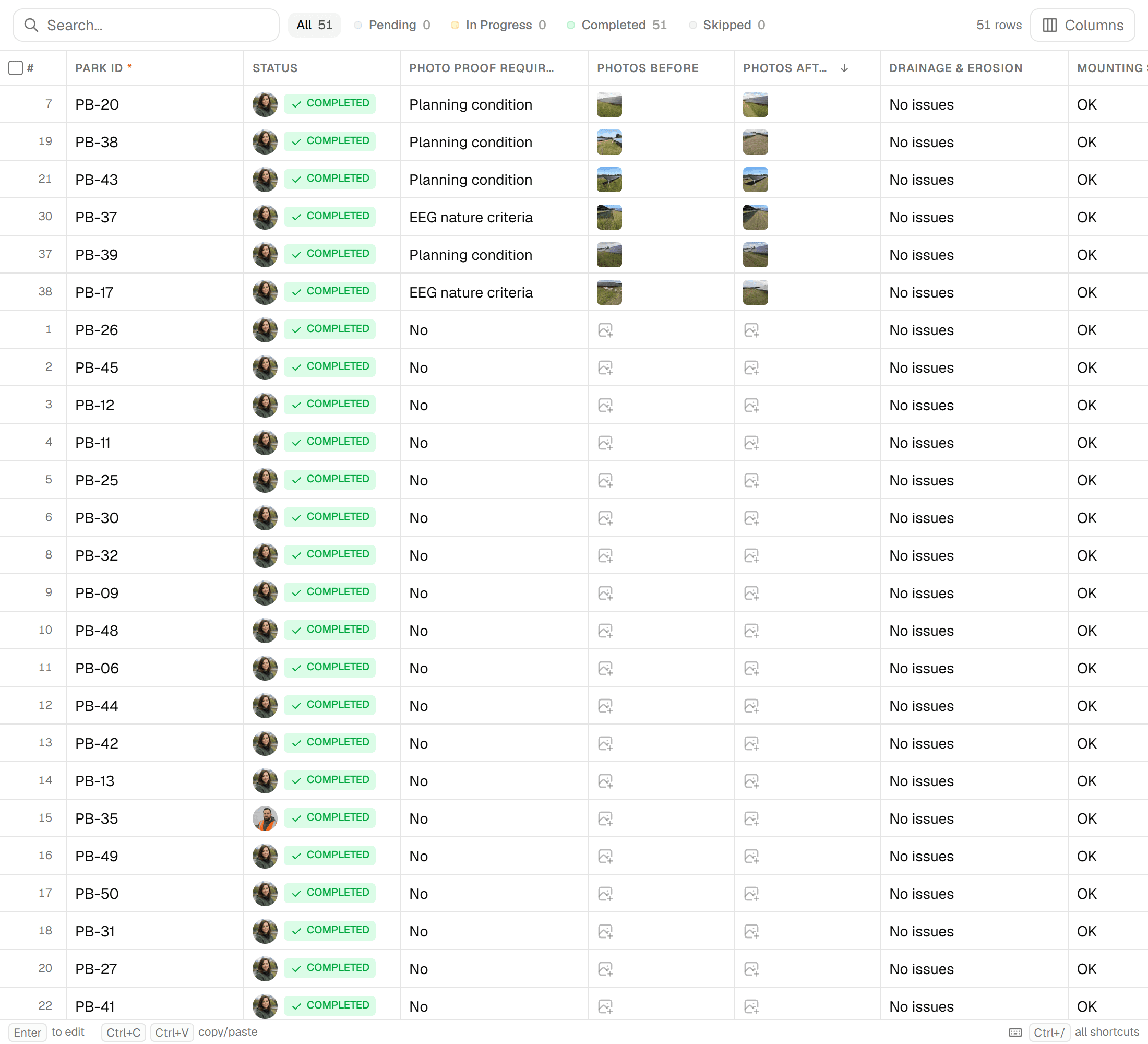
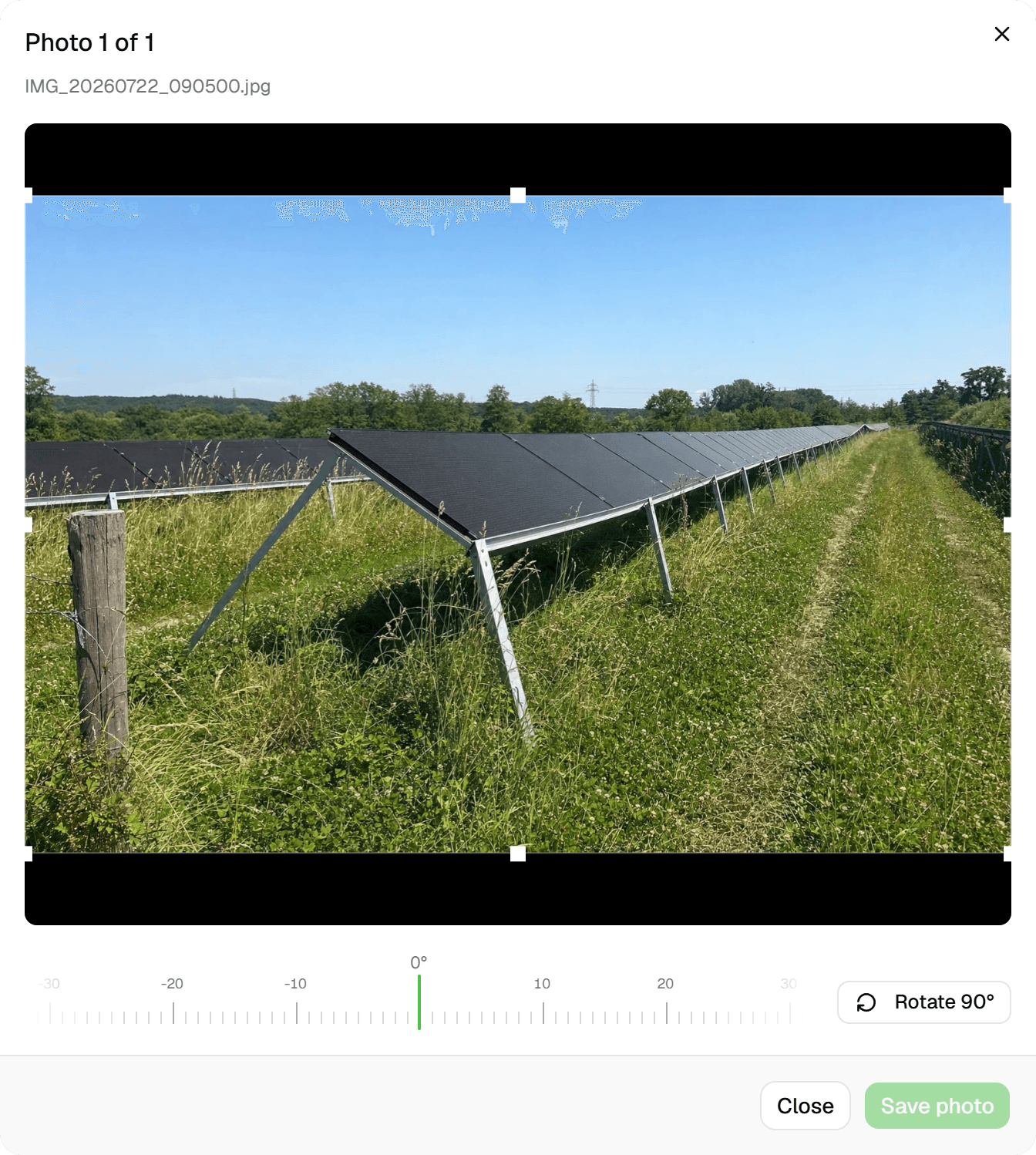
Image fields live inside the inspection form, so a photo is taken for a specific field of a specific feature and saved with that submission. Inspections are append-only, which means the photo stays with the record that produced it, with who submitted it and when. Downstream, reports print photos at their true aspect ratio, exports carry photo and signature URLs, and the spreadsheet view lets you crop or rotate without touching the original.
Key benefits
- Up to 5 photos per image field, saved with the inspection
- Camera or file picker on the web; camera or library in the Android app (early access)
- Compressed on the device: max 1920 px, JPEG quality 0.8
- Never cropped in reports: true aspect ratio, justified rows
- Photo and signature URLs in CSV, Excel, GeoJSON, Shapefile, GeoPackage
- Crop and rotate later; originals are never overwritten
Common Use Cases
- 01
Tree assessments with evidence
A trunk photo and a crown photo per tree, each in its own image field, so the report's photo appendix shows the right pair under the right tree number, with one page per tree if you want it.
- 02
Trial trenches, one page each
Photograph each trench and the layers exposed in it; the report's photo grid in its 'Page per feature' layout gives every trench its own page with its photos at their natural proportions.
- 03
Defect documentation
Damage, wear or missing parts photographed in the inspection that records them. The photo travels with the inspection into the timeline, the report and the export; reports and exports show the latest submission, while earlier submissions and their photos stay in the feature's history.
- 04
Hand-over to the client
The client opens the Excel or GeoPackage export and finds photo links beside every feature, or receives the report PDF with the photos already inlined. There is no photo folder to zip and no renaming by hand.
Frequently Asked Questions
How many photos can I attach?
Up to 5 per image field; the form builder sets the maximum between 1 and 5 per field. A form can contain several image fields, so 'trunk', 'crown' and 'damage' can each have their own.
What happens to resolution and file size?
Photos are compressed on the device before upload, on the web and in the Android app (early access): longest side 1920 px, JPEG at quality 0.8. Storage counts against your plan: 25 GB on Starter, 100 GB on Pro, 500 GB on Business, unlimited on Enterprise, with a breakdown in Settings > Billing. Data is stored in the EU (Frankfurt).
How do photos appear in reports?
Never cropped. The photo-appendix block builds a photo appendix from image fields with 1 to 4 columns, laid out 'Continuous' or 'Page per feature' (one page per feature), and individual photos can be excluded per report. A photo-selection block places up to 24 hand-picked photos with captions. Print width is capped at 1400 px and photos are inlined into the PDF, so files stay small.
How do photos come out in exports?
Every data format (GeoJSON, CSV, Excel, zipped Shapefile, GeoPackage) has a 'Photo & signature URLs' toggle that adds links to the uploaded images; several photos in one field are joined with semicolons. The links open directly in a browser: the paths are unguessable but not behind a login, so treat exports accordingly. DXF drawings carry no photos.
Can I fix a sideways photo?
Yes. The spreadsheet view has a photo editor with free-aspect crop and 'Rotate 90°'; saving creates a new image and leaves the original untouched. On the Android app you can rotate a photo as you take or pick it.
Is GPS or a timestamp embedded in the image?
No. Geocadra writes no EXIF data into the photo. Who took it and when come from the inspection it belongs to, shown in the feature's 'Form Submissions' timeline, and its location is the feature itself.
Explore More Features
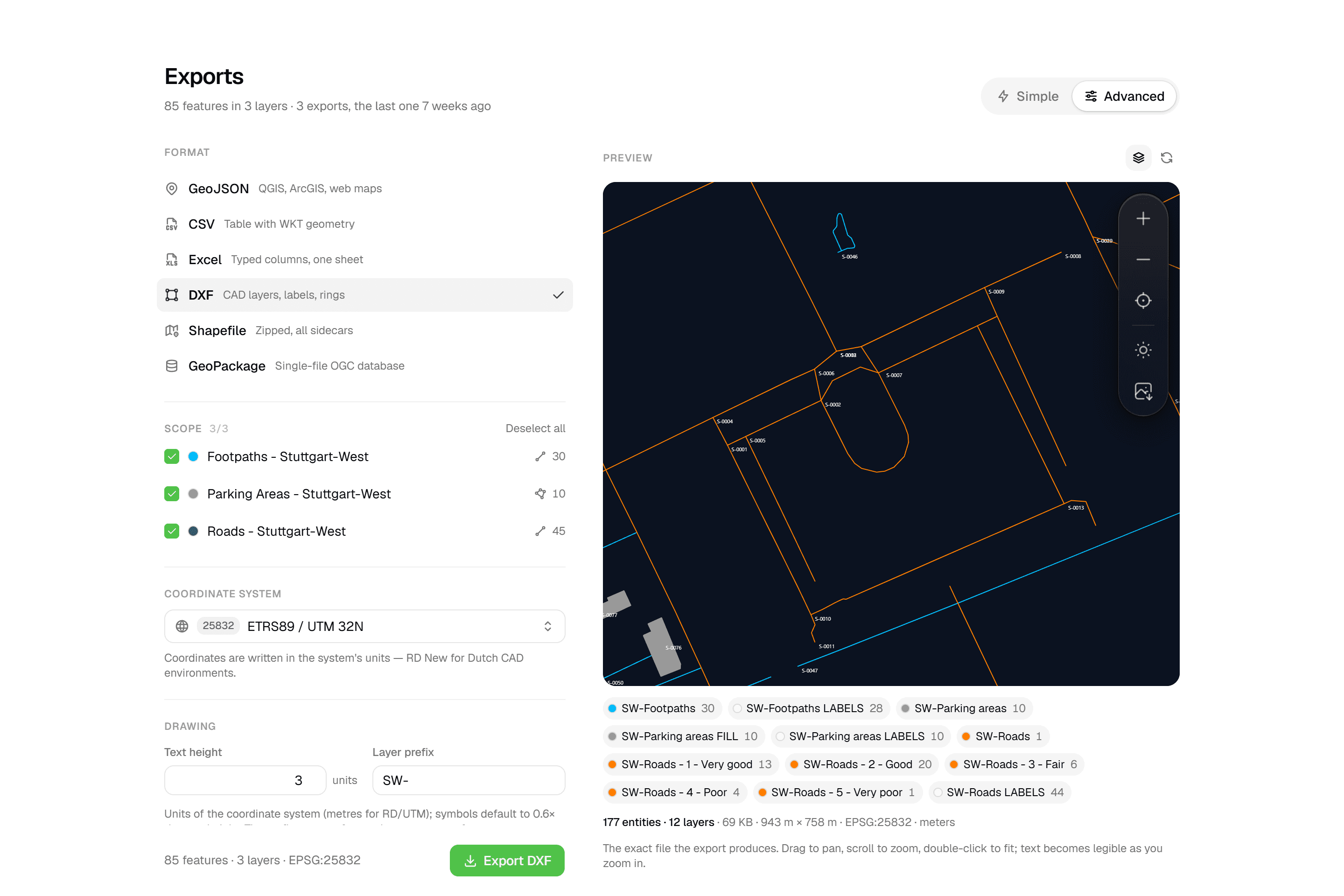 CAD-ready DXF, plus five data formatsLayered DXF with labels, rings and fills, previewed in the browser before you download. GeoJSON, CSV, Excel, Shapefile and GeoPackage on every plan.
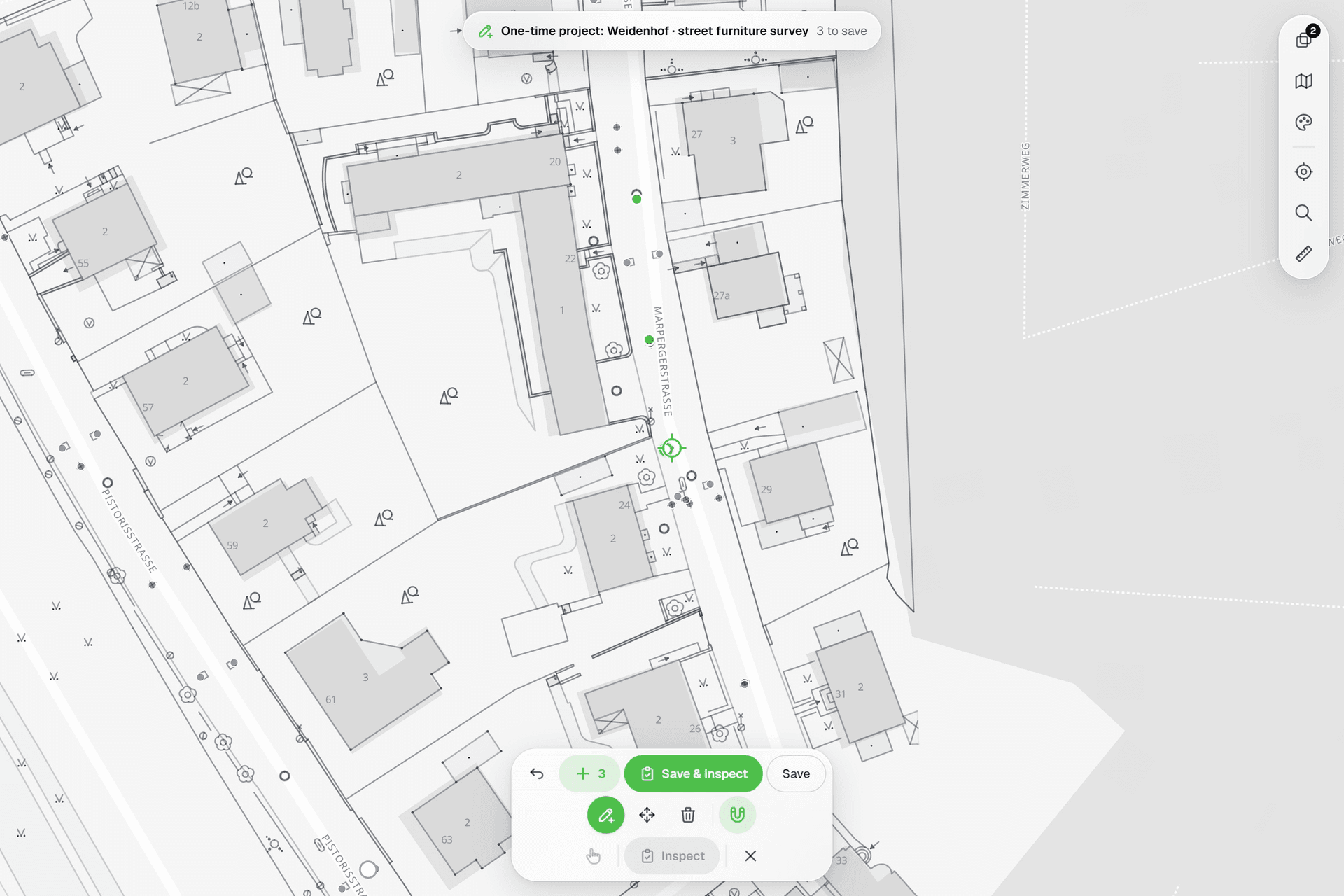 See everything on the mapPoints, lines and polygons over street maps, aerials, BGT and any CAD drawing you upload as reference. Place and correct geometry with a crosshair that snaps to the drawing.
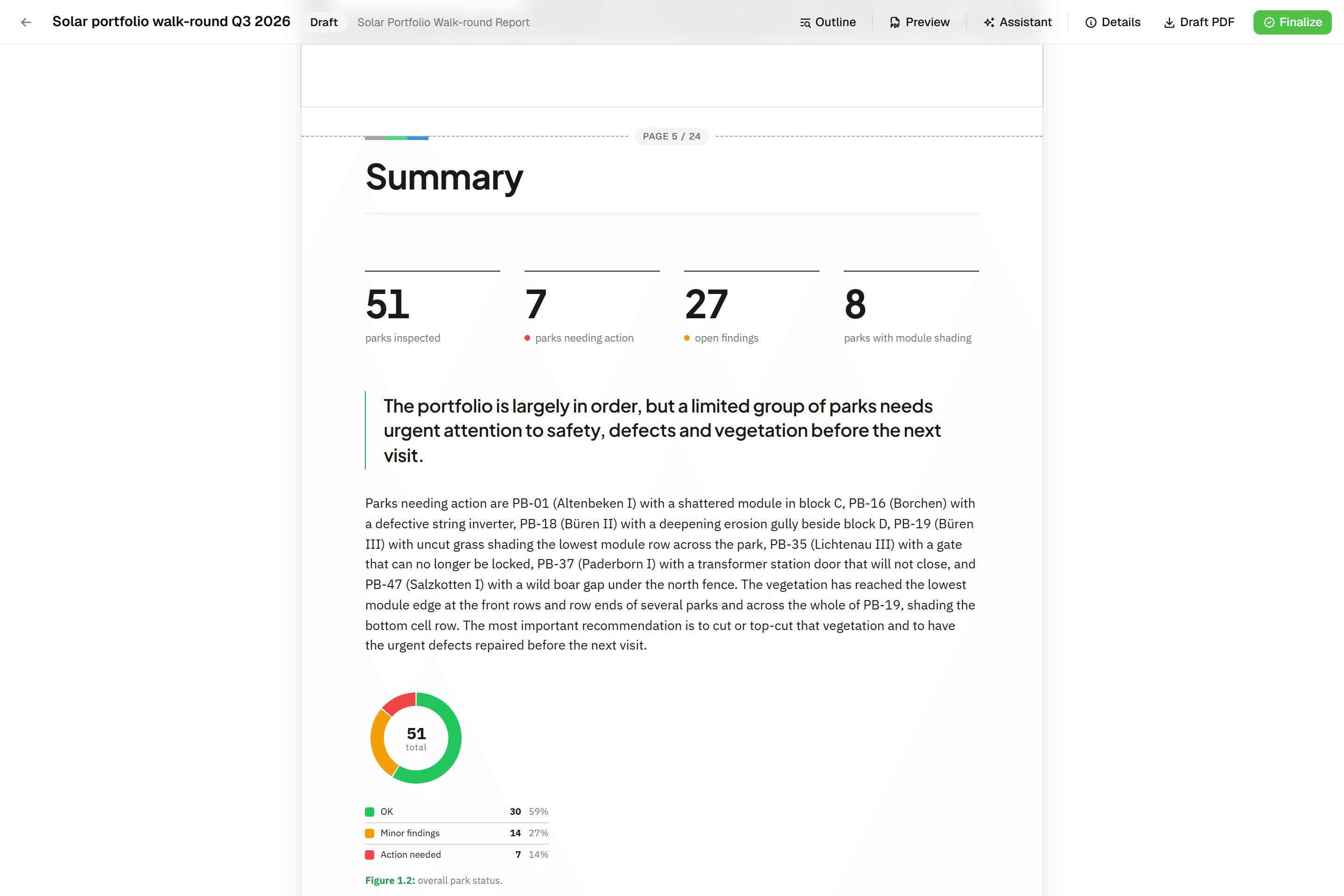 Reports that assemble themselvesBlock-based reports with live data tables, photo appendices, map figures and an AI assistant. Live PDF preview; finalize to an immutable PDF, revise as rev. B.
Try it on your own data
Set up a project and see your own data on the map. Free for 14 days, no credit card.
No credit card requiredFree trial included