



Import any GIS or CAD file
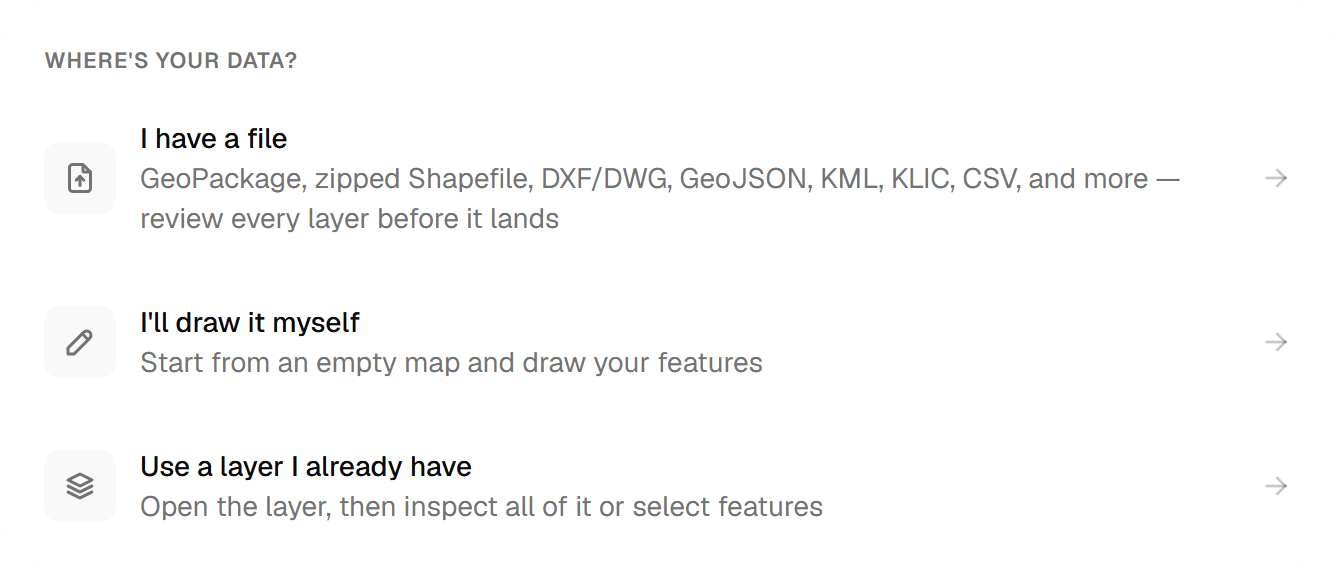
GeoPackage, zipped Shapefile, DXF/DWG, GeoJSON, KML, KLIC, CSV and more, reviewed layer by layer on the map before anything is saved.
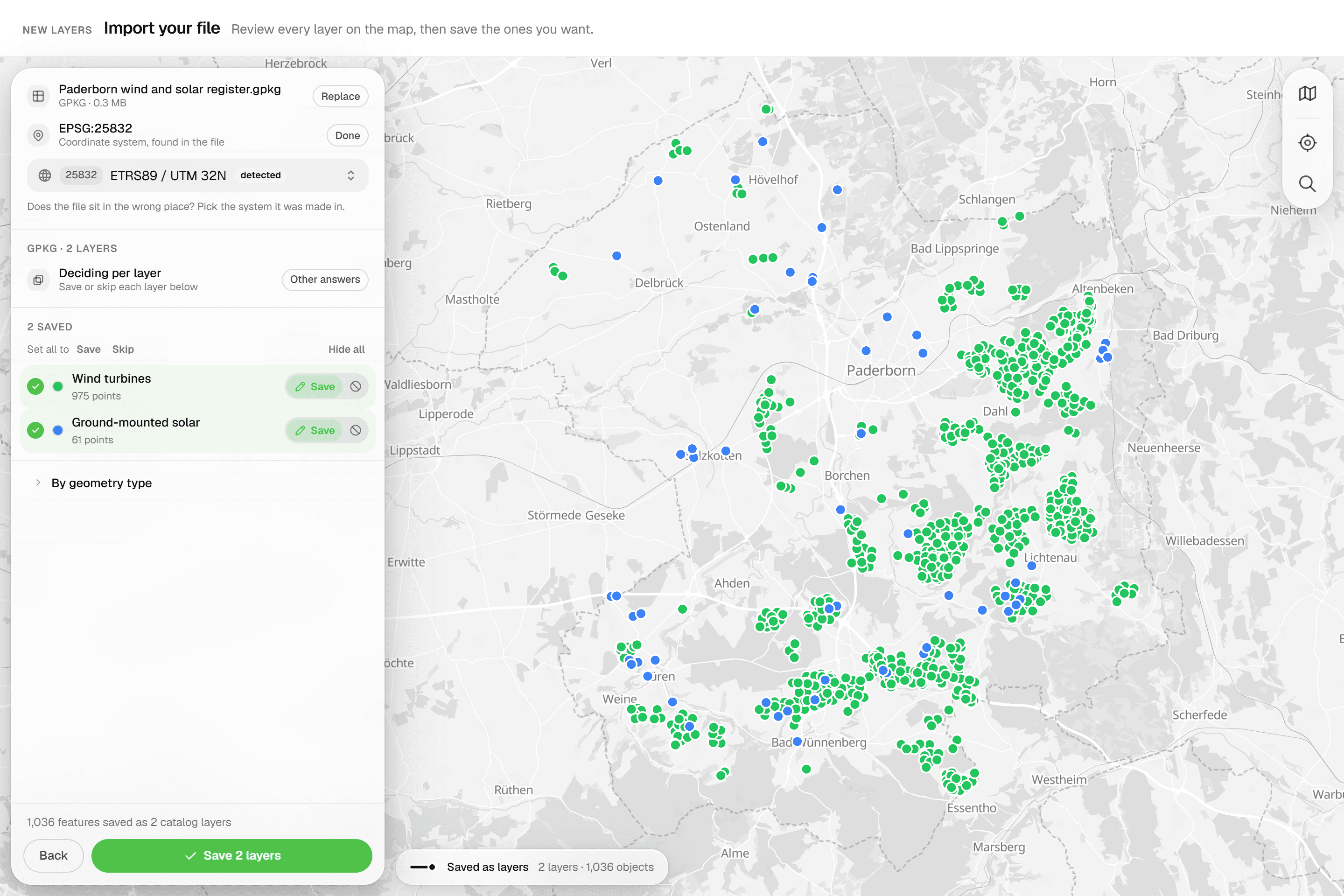
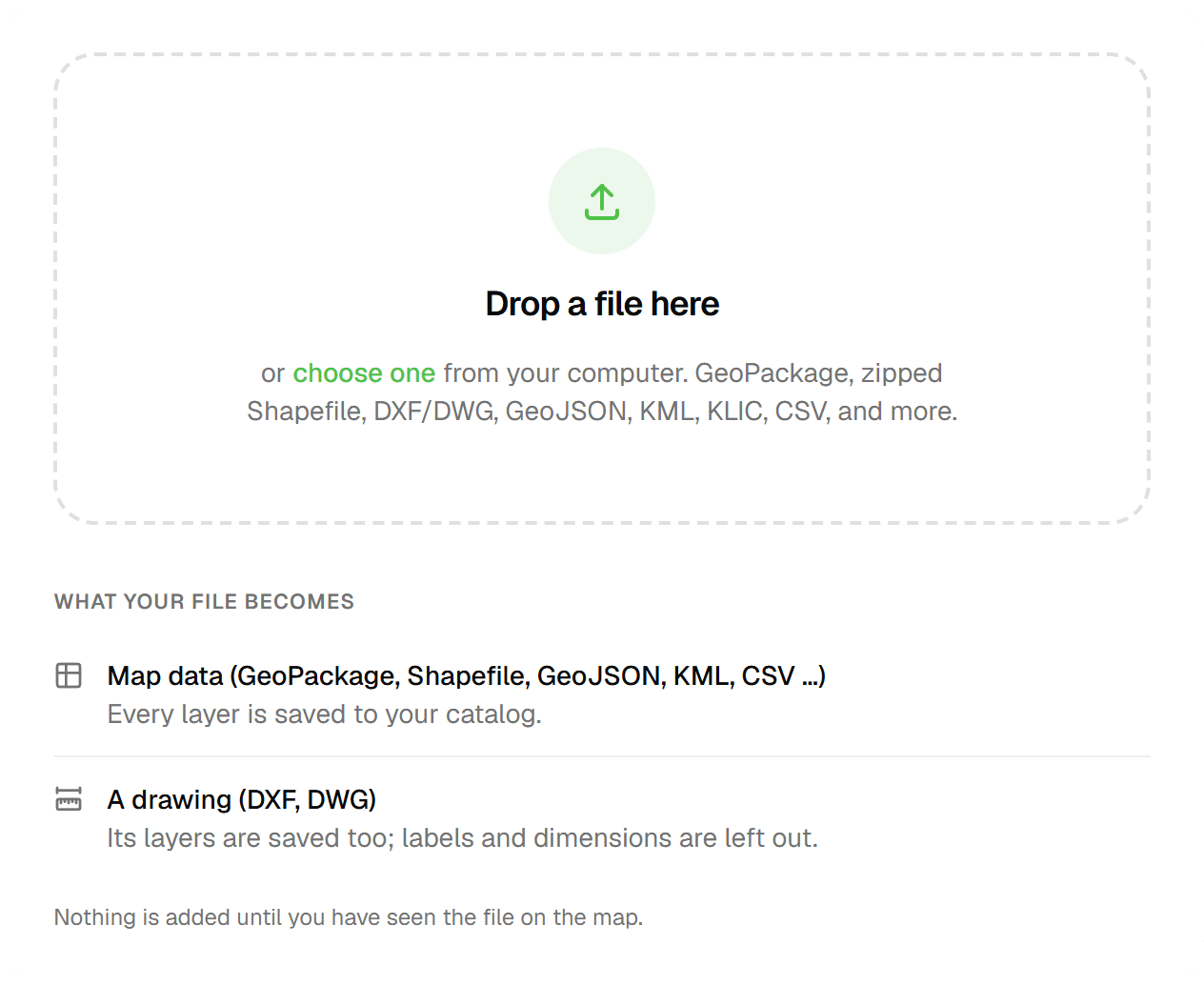
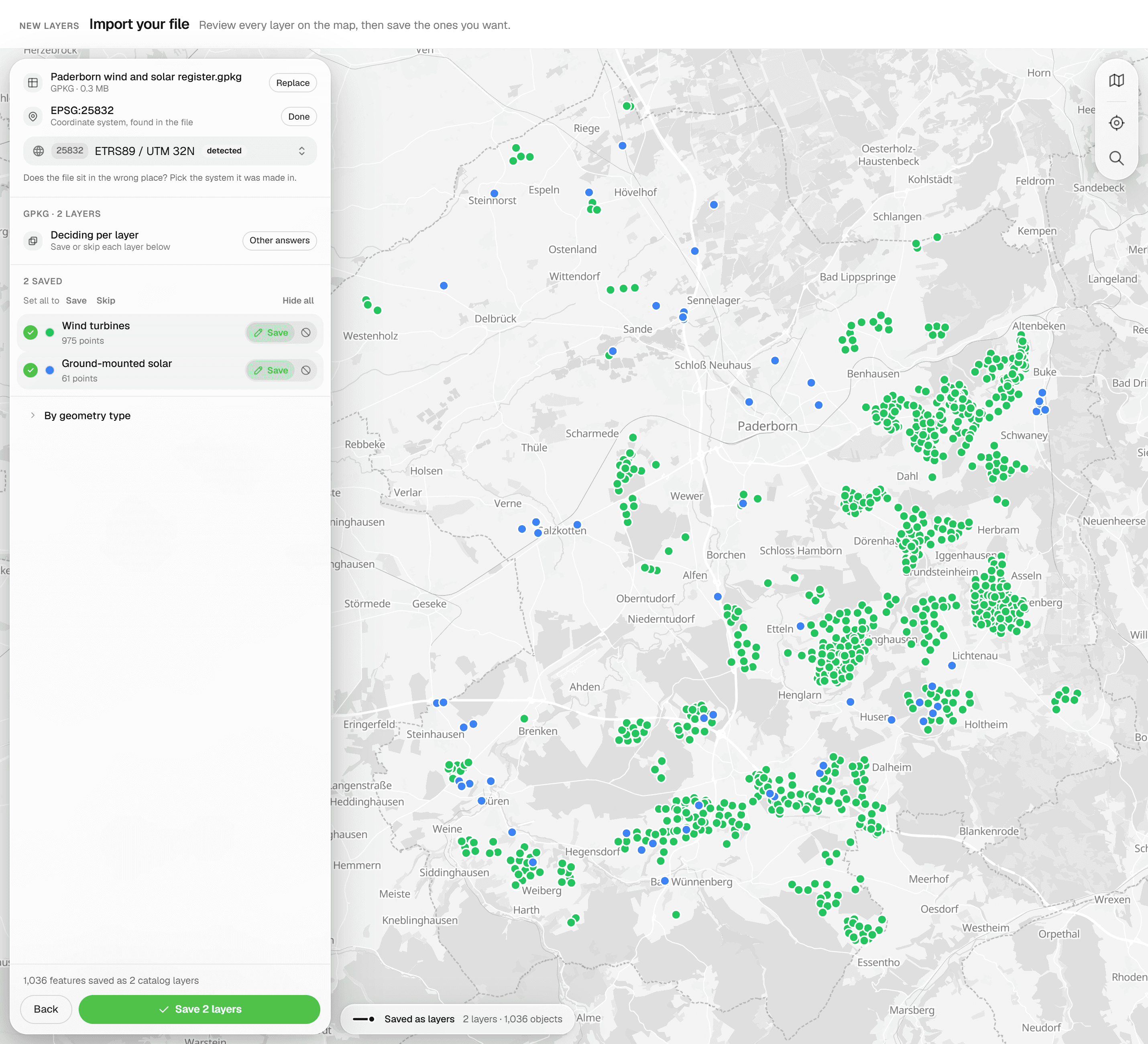
Your data already exists: in a client's GIS, in a CAD drawing, in a KLIC delivery, in a CSV. Geocadra reads it in its native format, shows every layer on a preview map with feature counts and coordinate system, and lets you decide per layer whether it becomes inspectable features, a read-only reference or nothing at all. One import engine serves the layer catalog, existing project maps and one-time projects.
The problem
Files arrive in whatever format the sender had
A municipality exports a GeoPackage, the engineer sends a DWG, the utility locate comes as a KLIC zip, and somebody has coordinates in a CSV. Each carries its own coordinate system, or none at all, and CAD drawings mix the points you need to inspect with linework, hatches and text you only want to see. Re-digitising is slow and introduces errors; guessing a projection puts the whole survey in the wrong place.
The solution
One import engine, three doors
Add layers to your catalog with 'Import a file', drop a reference onto a project map with 'Import file' or start a one-time project: all three open the same workbench. Upload straight to storage (up to 80 MB), inspect, preview, review each layer, commit. DWG files are converted on upload, so layers, blocks and texts survive. The coordinate system is detected where the file declares one; where it does not, you pick it and watch the preview re-project live. There is no silent fallback.
Key benefits
- GeoPackage, zipped Shapefile, DXF/DWG, GeoJSON, KML, KLIC, CSV, GPX, GML, FlatGeobuf
- Every layer set to Editable, Reference or Skip before saving
- CRS detected or picked, with live re-projection in the preview
- DWG converted on upload: layers, blocks and texts survive
- KLIC deliveries split into coloured utility themes
- Scans and PDF pages georeferenced by dragging them onto the map
Common Use Cases
- 01
Taking over a client's GIS data
A multi-table GeoPackage becomes several catalog layers in one save, one per selected source layer and geometry type. Each layer keeps the source file name as its origin, so you can trace every layer back to the delivery it came from.
- 02
CAD drawings as a backdrop
Drop a DXF or DWG on the project map: linework and texts become a read-only reference to draw and inspect against, point layers can become editable features, and a reference can later be promoted with 'Convert to layer'.
- 03
KLIC-meldingen
Upload the KLIC delivery zip exactly as it arrives, or the GI XML inside it. Each utility (gas, water, electricity, telecom, sewer and more) becomes its own coloured sub-layer, annotations render as labels, and the reference is titled after the KLIC number.
- 04
Old site plans and PDFs
A scanned plan or a page from a PDF is placed directly on the map: drag, resize, rotate, pin three match points and save. The fit reports residuals in metres and flags the worst point.
Frequently Asked Questions
Which file types can I upload?
.dxf, .dwg, .gpkg, .geojson, .json, zipped Shapefile (.zip), .kml, .csv, .tsv, .gpx, .gml, .xml (GML, e.g. KLIC) and .fgb. On a project map you can also add .png, .jpg and .pdf as georeferenced references. KMZ, Excel (.xlsx), DGN and loose .shp/.dbf parts are not accepted; zip the .shp, .dbf and .shx together and upload the .zip.
What happens with the coordinate system?
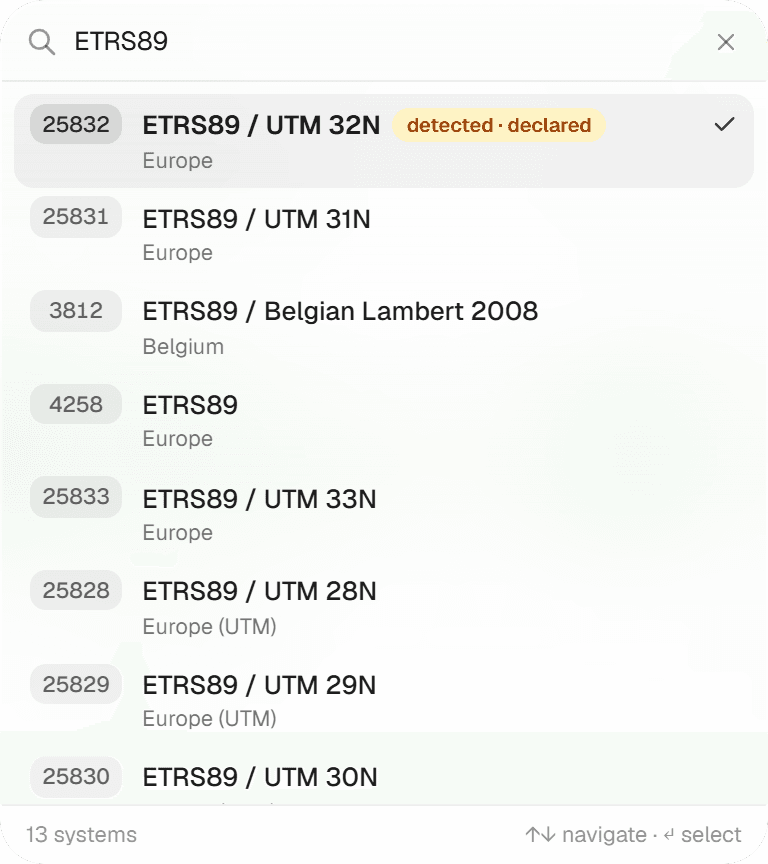
A declared CRS places the file automatically. Without one, plain lon/lat data is shown as 'WGS 84 · assumed'; anything else asks you to pick a source CRS before you can commit, and a declared CRS that lands outside the world is flagged as a mismatch. The picker lists RD New, WGS 84, ETRS89 UTM 31N/32N, Belgian Lambert 72 and Web Mercator first, then a searchable European catalog and all UTM zones. RD New uses the official RDNAPTRANS2018 correction grid.
My DXF has no coordinate system. What then?
Geocadra reads the AutoCAD GEODATA definition when the drawing has one. Otherwise, if most entities fall inside the Dutch RD range it proposes RD New with a note to verify; if not, the drawing is treated as local coordinates and you either pick a CRS or georeference it manually: click a point in the drawing, then the same spot on the map.
How do CSV files get a location?
Columns named lon, lng, x, longitude or long and lat, y or latitude are detected as coordinates, or a WKT column named geometry, geom, wkt, the_geom or shape is used. Excel files are not read; save as CSV first.
How big can a file be?
80 MB per file, uploaded directly from your browser to storage. The first 40 source layers of a file are read; any beyond that are dropped with a warning. Above 150,000 features you get a warning that map rendering and exports may be slow and a filtered extract is advisable.
Can I add PDOK or my own map services as a backdrop?
Yes. 28 PDOK presets ship built in (Luchtfoto 8 cm and 25 cm, BRT, BGT, Kadastrale kaart, BAG, AHN and more), plus a 'Custom service' form for an XYZ tile template or a WMS layer. External layers are raster only and appear on every organization map, project map and in the georeferencing workspace.
Explore More Features
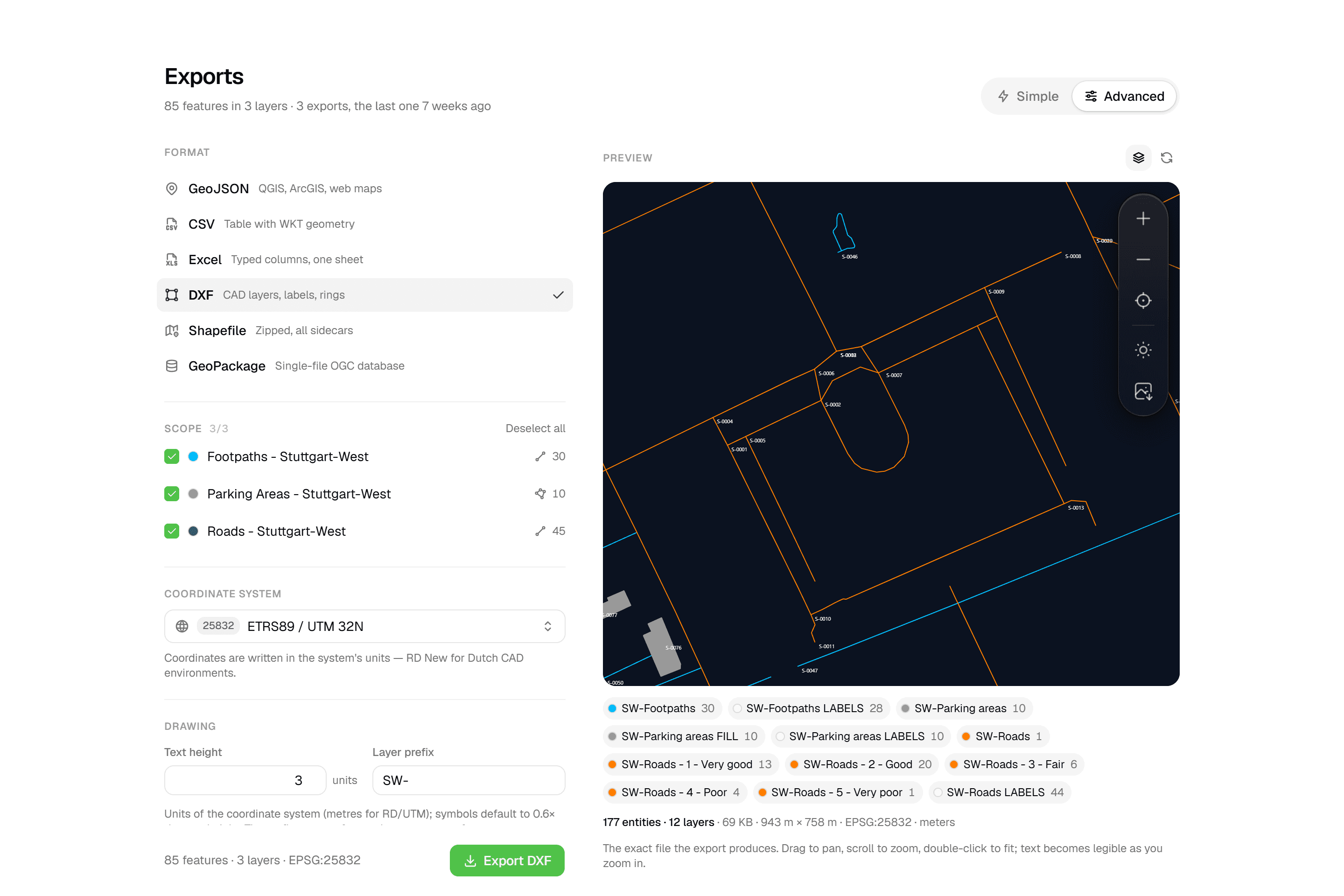 CAD-ready DXF, plus five data formatsLayered DXF with labels, rings and fills, previewed in the browser before you download. GeoJSON, CSV, Excel, Shapefile and GeoPackage on every plan.
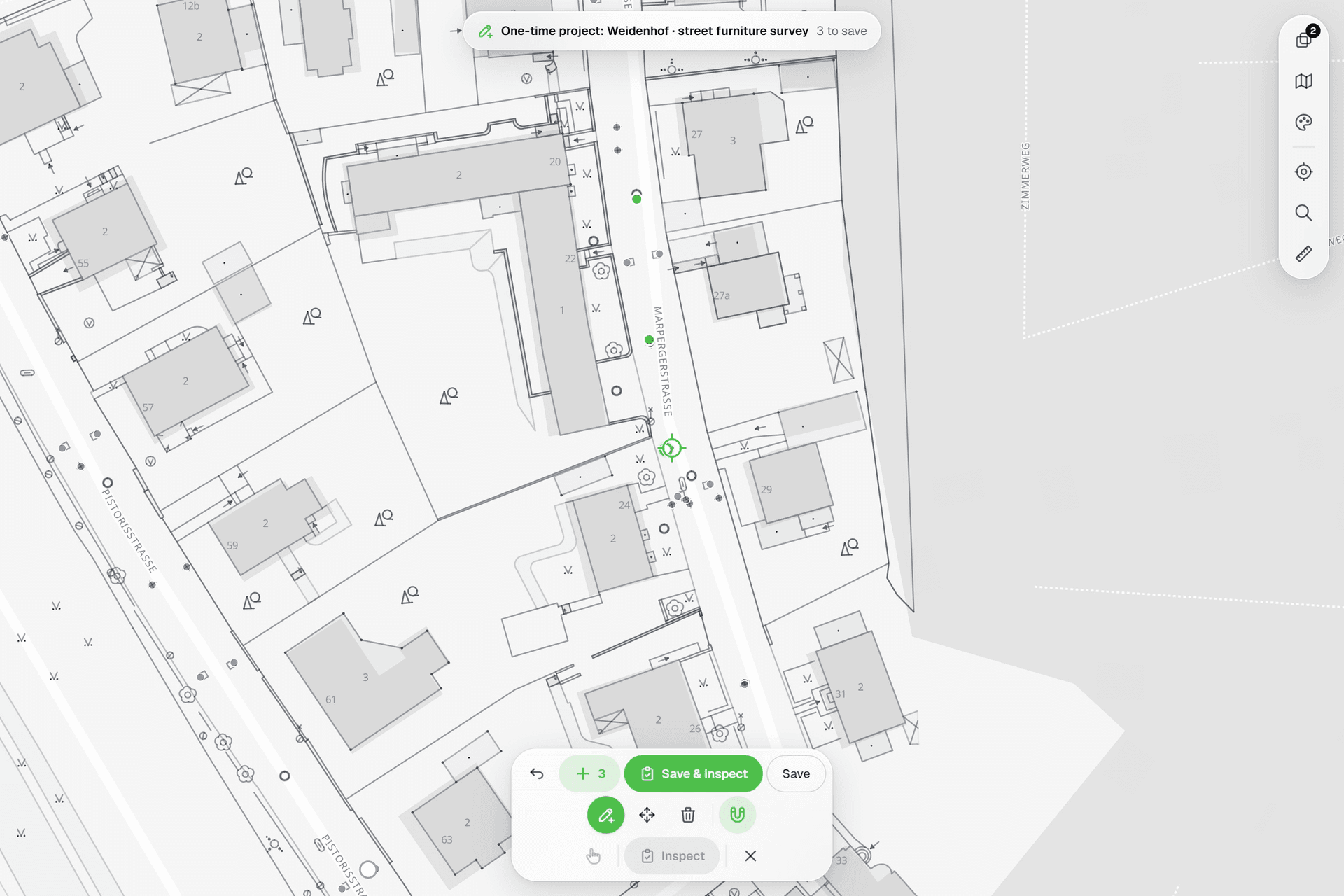 See everything on the mapPoints, lines and polygons over street maps, aerials, BGT and any CAD drawing you upload as reference. Place and correct geometry with a crosshair that snaps to the drawing.
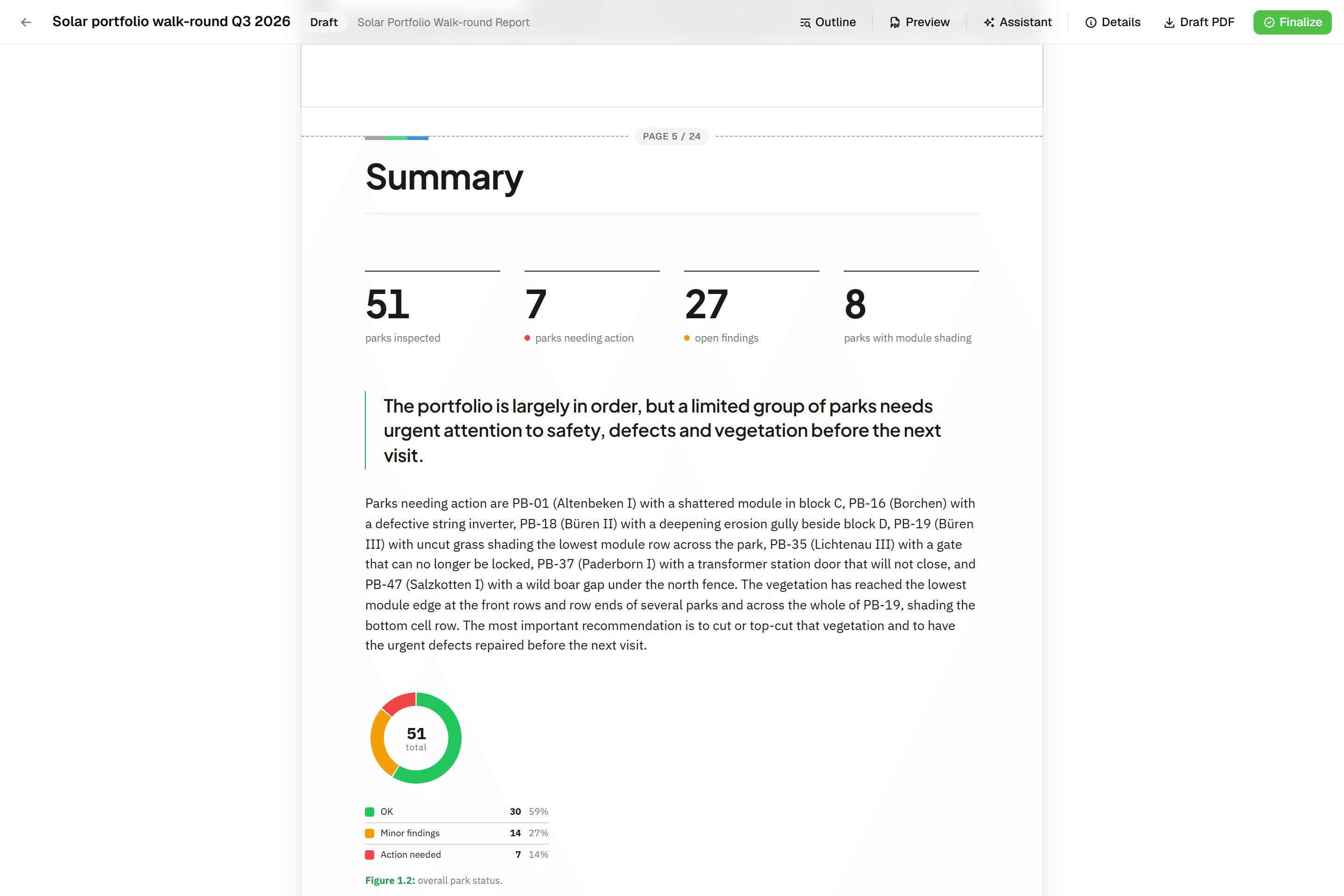 Reports that assemble themselvesBlock-based reports with live data tables, photo appendices, map figures and an AI assistant. Live PDF preview; finalize to an immutable PDF, revise as rev. B.
Try it on your own data
Set up a project and see your own data on the map. Free for 14 days, no credit card.
No credit card requiredFree trial included