


Inspection forms built for the field
Build the form your work actually needs, with calculated fields, unique IDs and repeatable blocks.
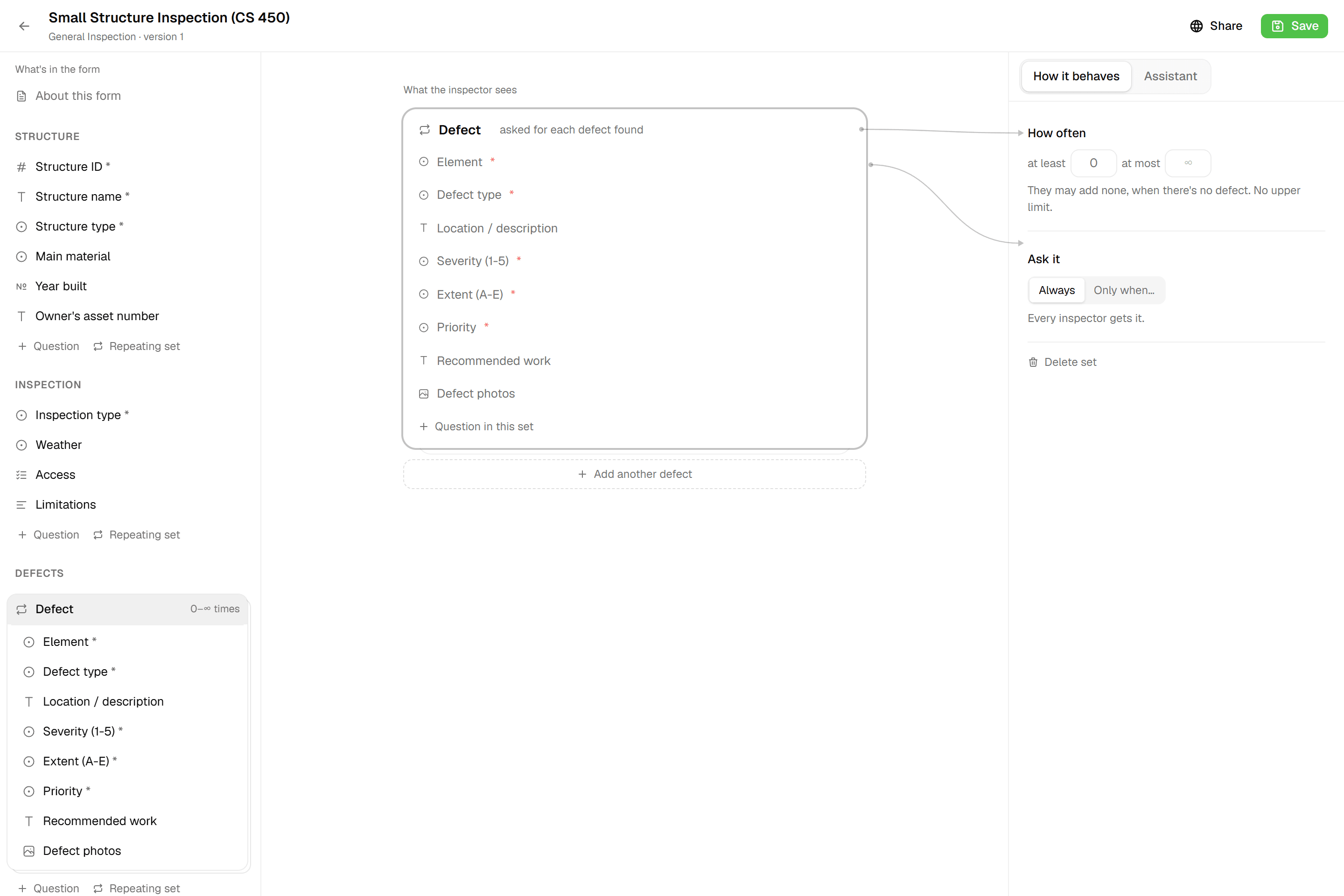
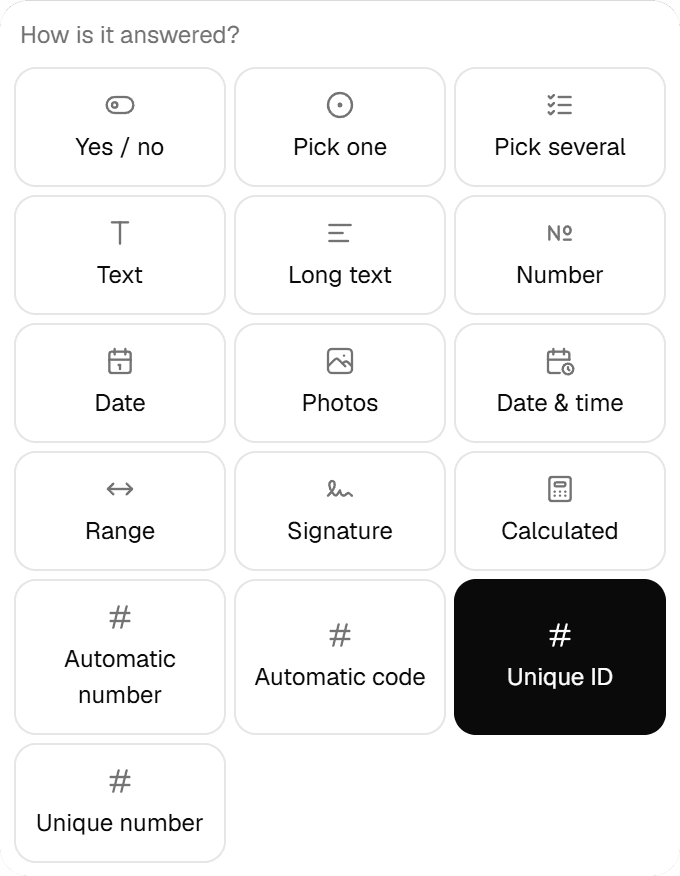
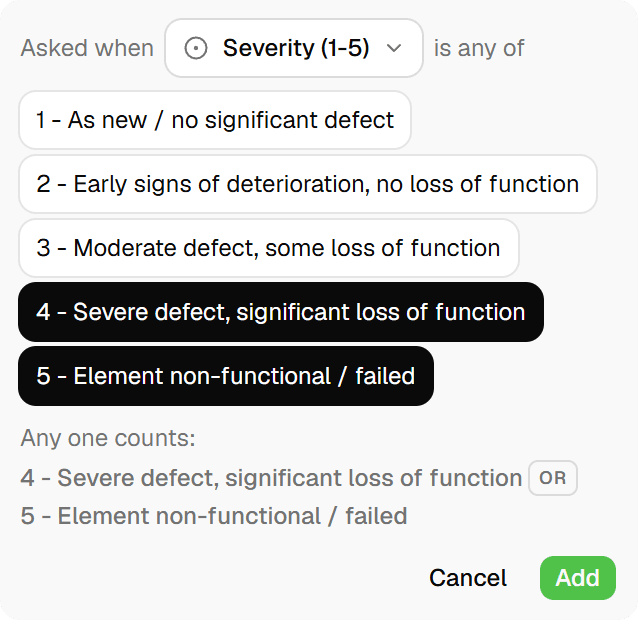
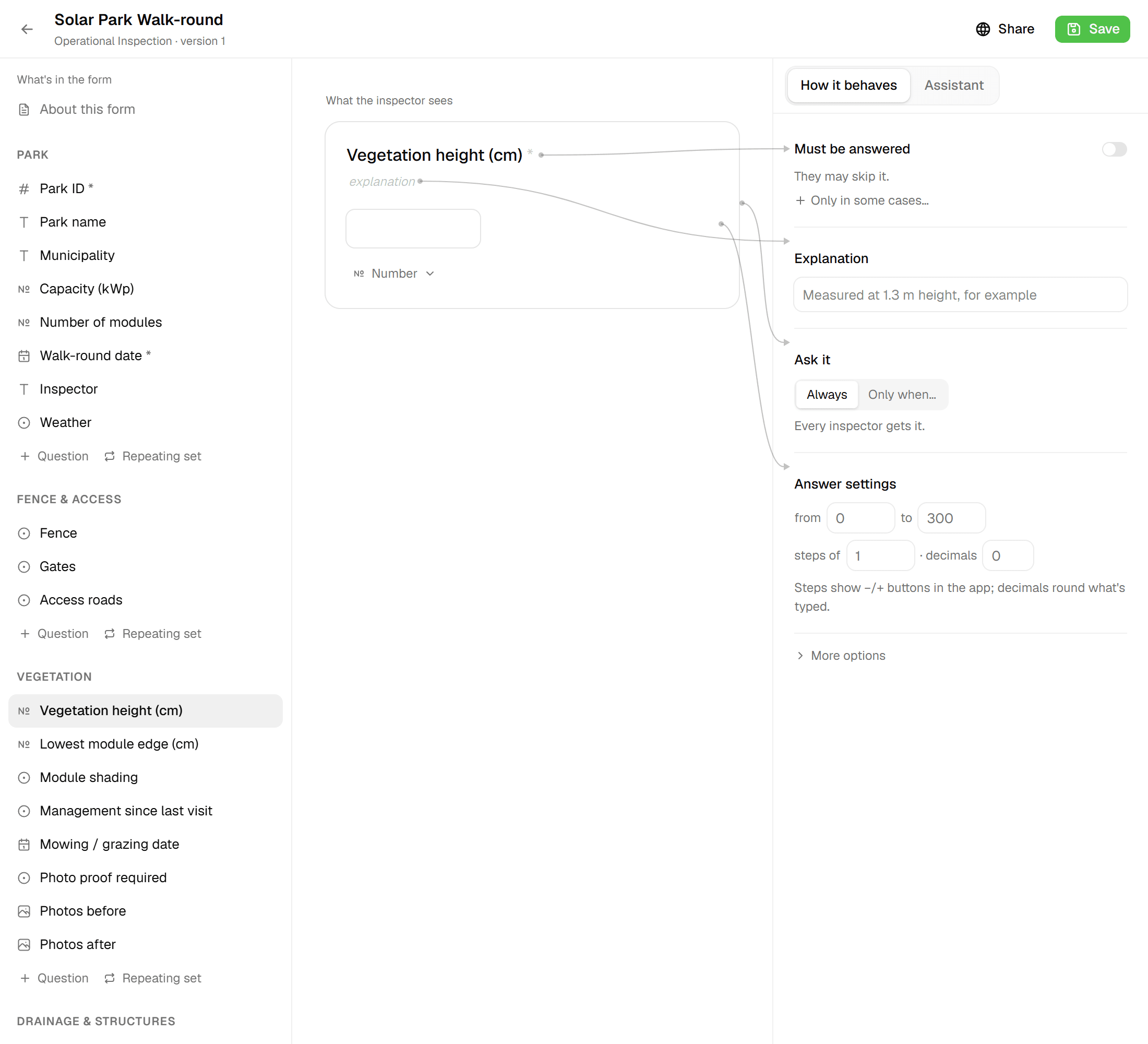
The form builder gives you 12 field types, from Yes/No and Single Select to Range, Images, Signature and Computed. Group fields into sections and repeatable blocks, add formulas and lookup tables, and let Geocadra number your features for you. Every save is a new immutable version, and each project layer keeps the version it was bound to, so data never changes shape under a running project.
The problem
Generic forms, or paper
Off-the-shelf collection apps give you a text box where you needed a range, a free-text field where you needed a fixed list, and no way to calculate a score or number features consistently. Paper captures anything and then costs you an afternoon of re-typing, duplicate IDs and values that disagree between sheets. Either way, the checks you rely on happen afterwards in a spreadsheet, when it's too late to walk back to the tree.
The solution
A builder that knows what field data looks like
Pick from 12 field types, arrange them in sections and drag-sortable repeatable blocks, and configure each one: Min, Max, Step and Decimals on numbers and ranges, 1–5 photos on an Images field, 'When checked, set fields to…' on a Yes/No. Computed fields take a formula that the builder validates as you type and the inspection sheet calculates live, optionally backed by a workspace lookup table. ID fields keep every feature unique per layer: typed by hand, prefilled with the next free number, or assigned a short code on save.
Key benefits
- 12 field types, from Yes/No to Signature
- Computed fields with live formula validation
- Sequential or auto-generated IDs, unique per layer
- Every save is an immutable version
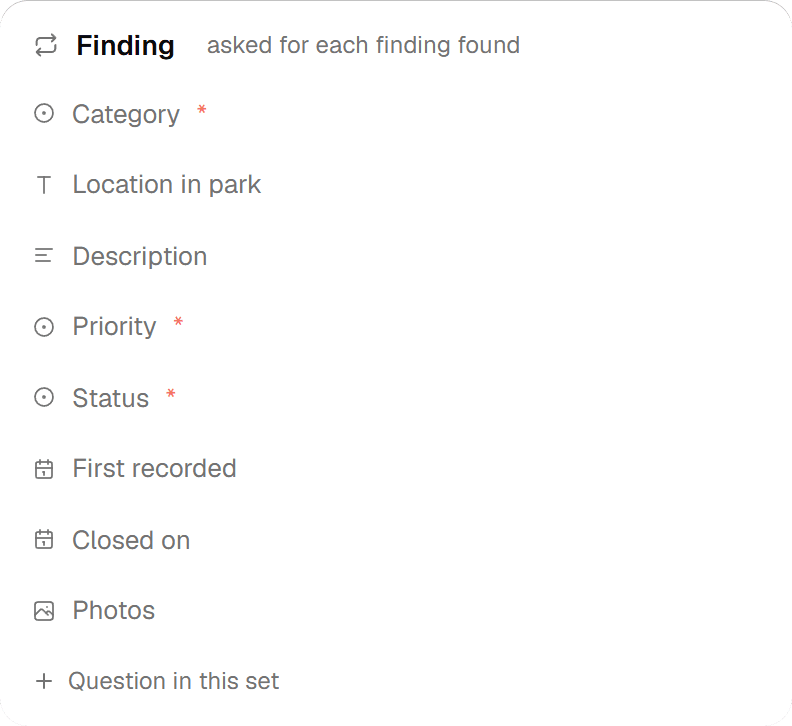
- Repeatable blocks with min and max instances
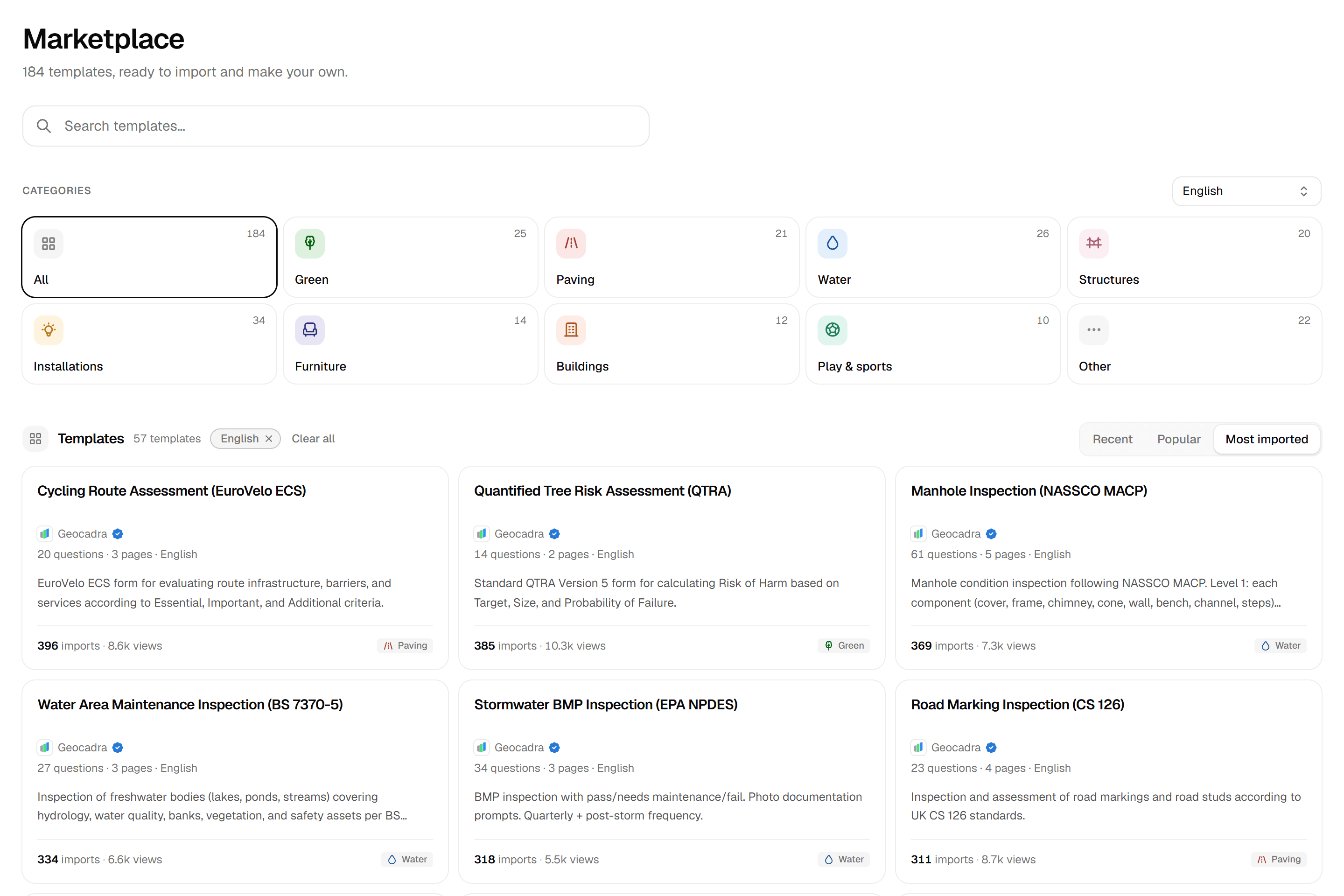
- Publish to and copy from the form marketplace
How It Works
- 01
Add sections, fields and repeatable blocks
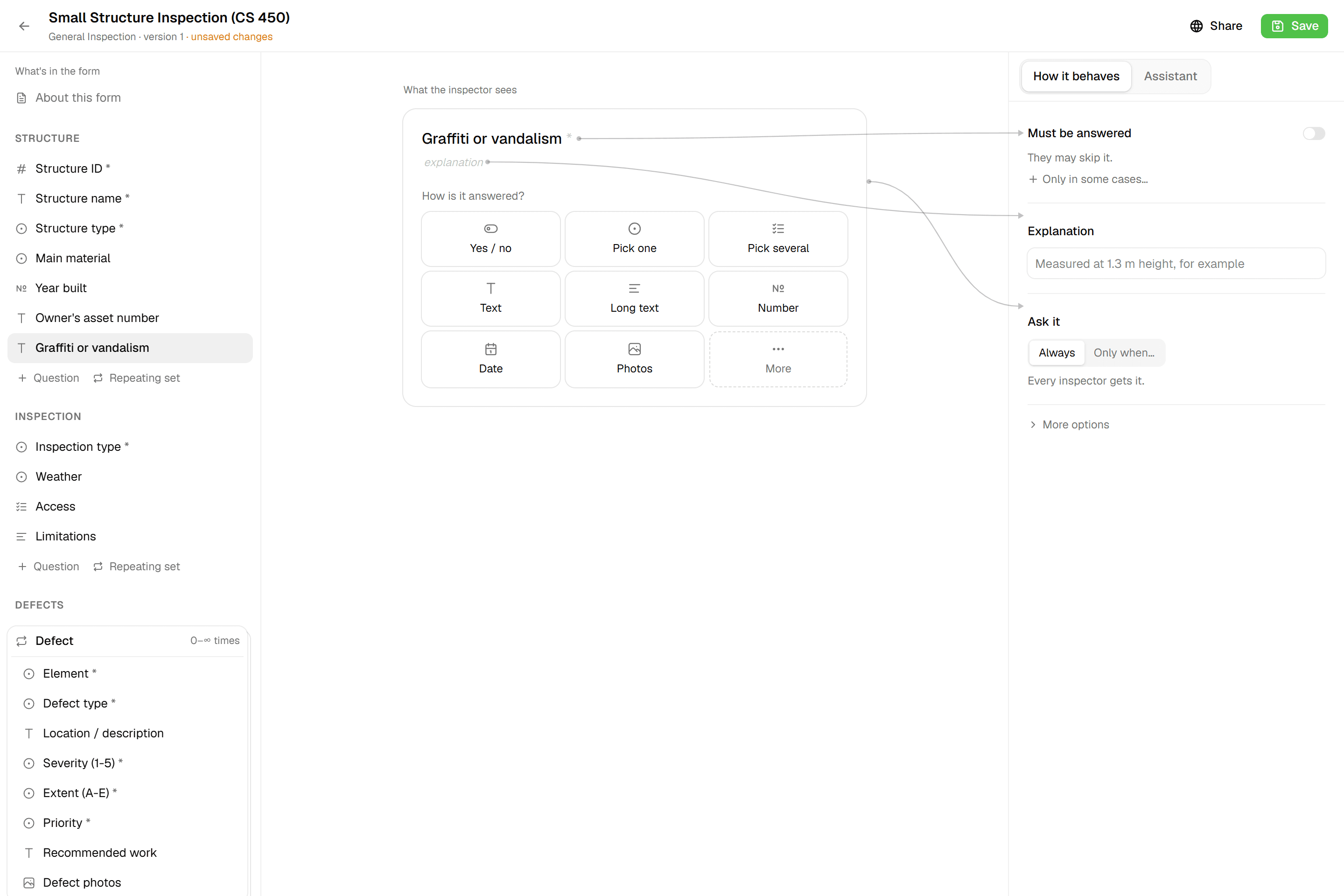
Choose from Text, Textarea, Number, Yes/No, Single Select, Multi Select, Date, Date & Time, Images, Signature, Computed and Range in the 'Add field' picker. Group fields into sections; put recurring items in a repeatable block with a minimum and maximum number of instances. Set Min, Max, Step and Decimals on Number and Range fields, and up to 5 photos on an Images field. Or describe the form to the built-in AI assistant. It adds sections, fields and blocks for you, and you still press Save.
- 02
Add rules: formulas, IDs and cascades
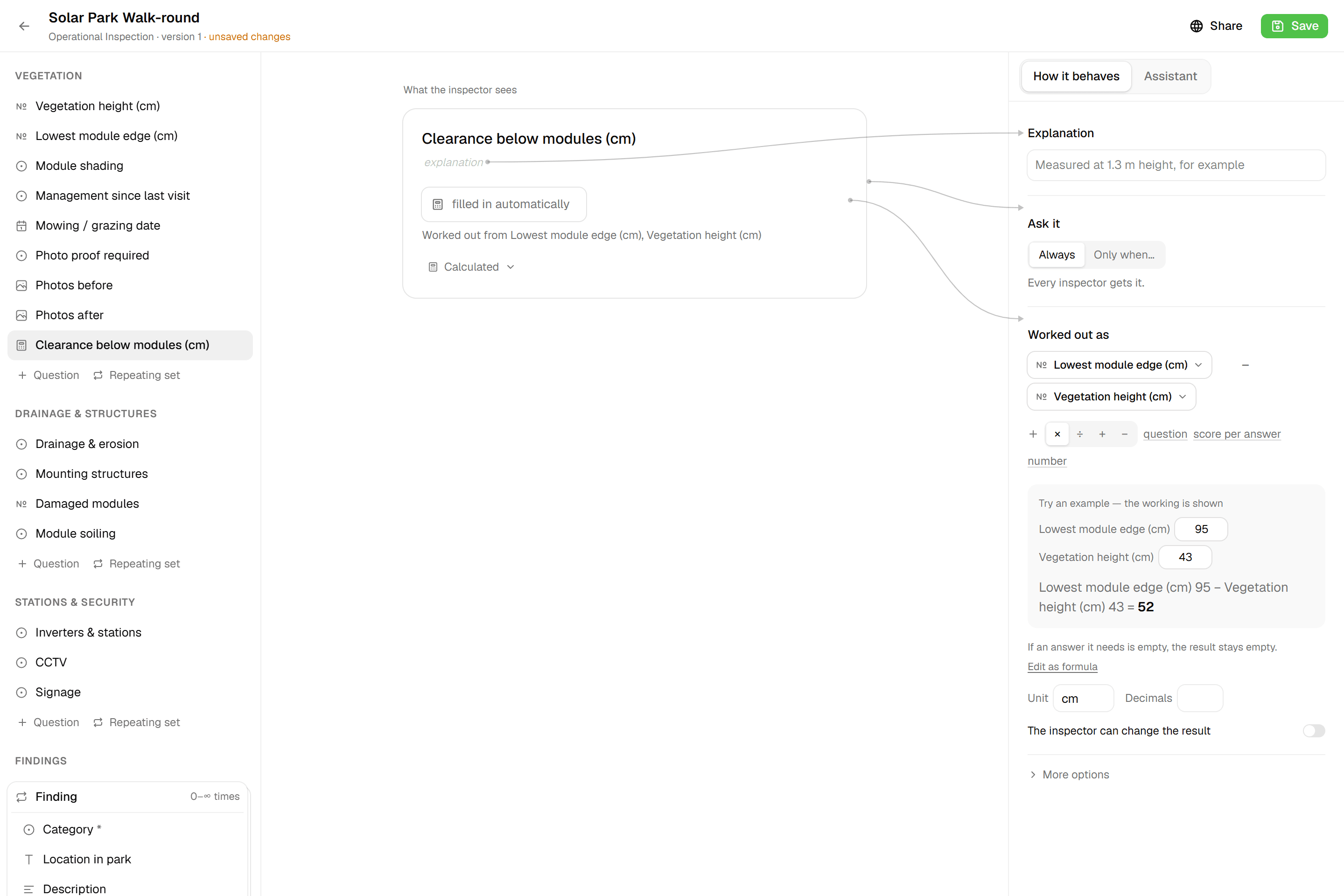
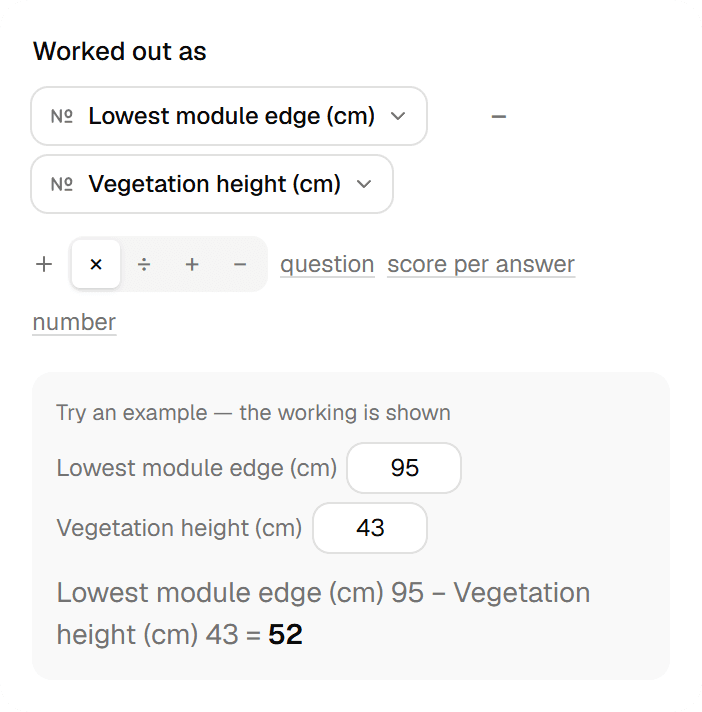
A Computed field takes a formula with +, -, * and /, plus round, min, max, clamp, midpoint ('15-17 m' becomes 16), coef, table and coalesce; the builder validates it live and shows which fields it reads. Mark it 'Manually adjustable' when the crew should be able to overwrite the prefilled result. Make a field the form's 'ID field (unique per layer)': Manual, Sequential with an optional letter prefix (B → 'B2'), or Auto for a short code on save, with uniqueness enforced on the server. A Yes/No field can set other single-select fields 'When checked' and restores them when unchecked.
- 03
Save a version, bind it to layers, share it
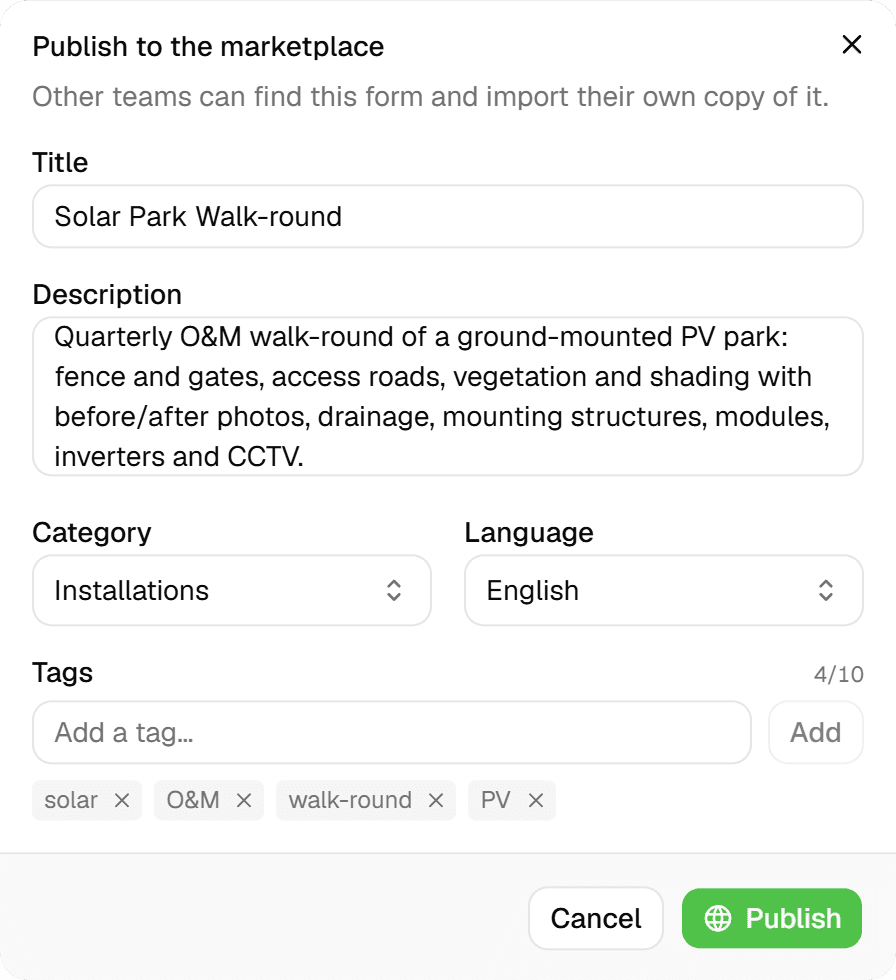
Saving creates a new immutable version ('Saved as version N'); older versions open read-only, and projects keep the version their layers were bound to. Each project layer binds its own form, so one project can inspect trees and paving with different sheets. Publish a form to the Geocadra marketplace straight from the builder, or browse listings and 'Copy' one into your workspace.

Common Use Cases
- 01
Tree inspections with a numbering scheme
A Sequential ID with a prefix prefills the next free tree number. A Single Select holds height classes like '15-17 m' while a Computed field takes their midpoint. A 'Tree not found' Yes/No sets the remaining assessment fields to N.v.t. in one tap and restores them if the tree turns up after all.
- 02
Several defects per asset
Put defect type, severity and a photo in a repeatable block. Inspectors add as many instances as the asset needs, within the minimum and maximum you set, and report tables can list each instance as its own row.
- 03
Scores from lookup tables
Keep a workspace lookup table with one to three keys, say species class and trunk diameter, and a Computed field reads it with table('name', field1, field2). Coefficients per select option come from coef(); a unit and the number of decimals are set on the field.
- 04
Sign-off in the field
Add a Signature field and mark what must be filled as required; the inspection sheet checks required fields and range validity before it submits. Date & Time and Images fields keep the when and the evidence with the record.
Frequently Asked Questions
Which field types are available?
Twelve: Text, Textarea, Number, Yes/No, Single Select, Multi Select, Date, Date & Time, Images, Signature, Computed and Range. Number and Range fields take Min, Max, Step (which shows −/+ buttons in the field app) and 0–6 Decimals; Images fields hold 1–5 photos, compressed on the device to 1920 px JPEG.
How do computed fields work?
You write a formula that references other fields by their storage key, using +, -, * and / with parentheses and the functions round, min, max, clamp, midpoint, coef, table and coalesce. The builder validates it while you type and lists the fields it depends on. Tick 'Manually adjustable' and the calculated value prefills but can be overwritten in the field.
How do unique IDs work?
Set one field as the form's 'ID field (unique per layer)'. Manual rejects duplicates within a layer; Sequential (number fields) prefills the next free number, optionally with a letter prefix; Auto (text fields) assigns a short unique code on save. Uniqueness and sequences are scoped per project and layer and enforced on the server, so the same number is never handed out twice.
Can one answer fill in other fields?
Yes. A Yes/No field can be configured with 'When checked, set fields to…' targeting single-select fields: 'Tree not found' can set every assessment field to N.v.t., for example. Unchecking restores the previous values. This works in the inspection sheet and in the feature grid alike.
What happens to running projects when I change a form?
Each save is a new immutable version. Older versions open read-only ('Historical Version (Read-Only)'), and projects and layers keep the version they were bound to, so data collected in a running project never changes shape underneath it.
Can I reuse forms from other teams?
The form marketplace lists forms published by other workspaces: search, sort by Recent, Popular or Top Imports, filter by category and language (English, Nederlands, Deutsch, Français), and 'Copy' one into your workspace; it is matched to a project type by category. Publishing your own form takes a title, description, category, language and up to 10 tags; one listing per form.
Explore More Features
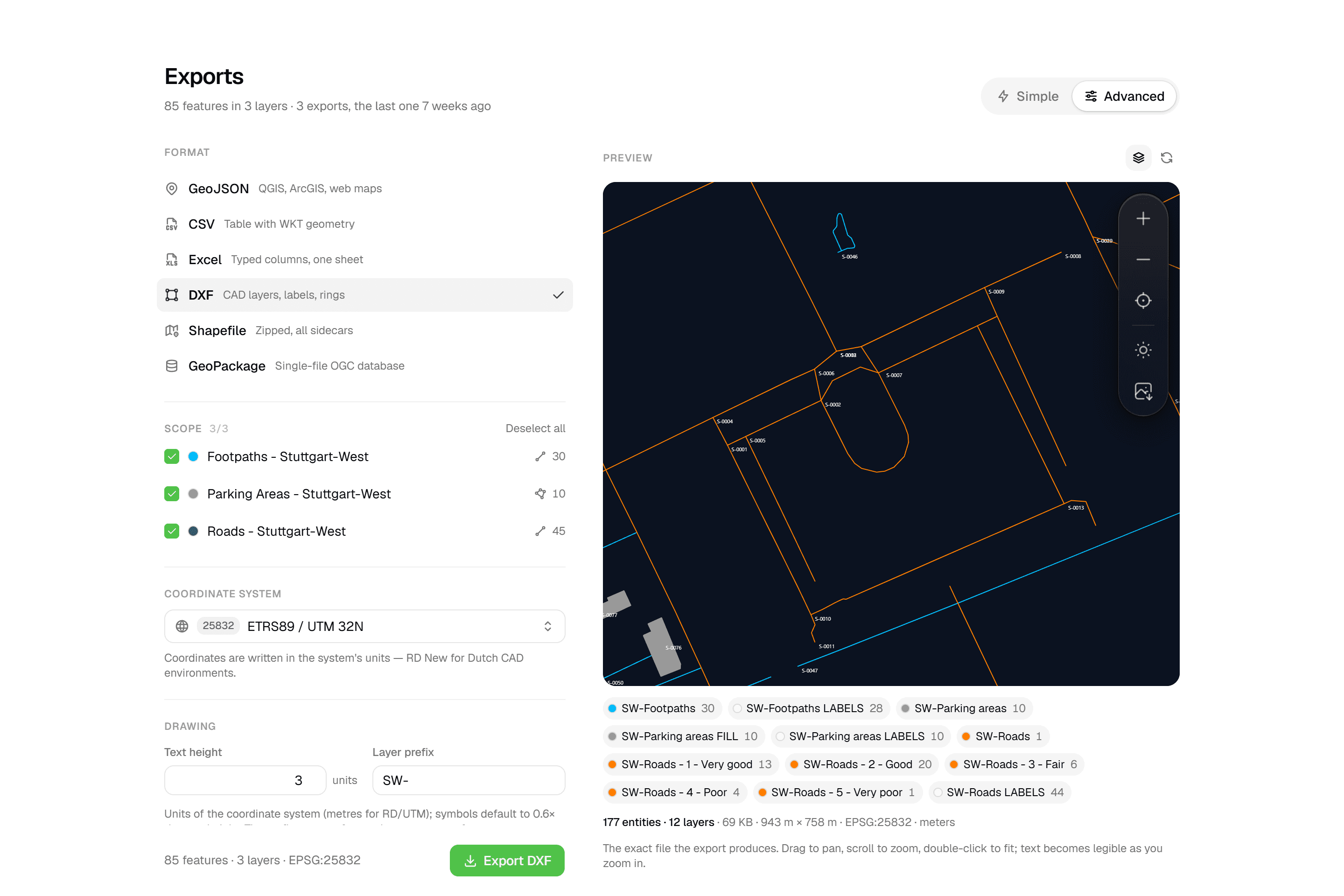 CAD-ready DXF, plus five data formatsLayered DXF with labels, rings and fills, previewed in the browser before you download. GeoJSON, CSV, Excel, Shapefile and GeoPackage on every plan.
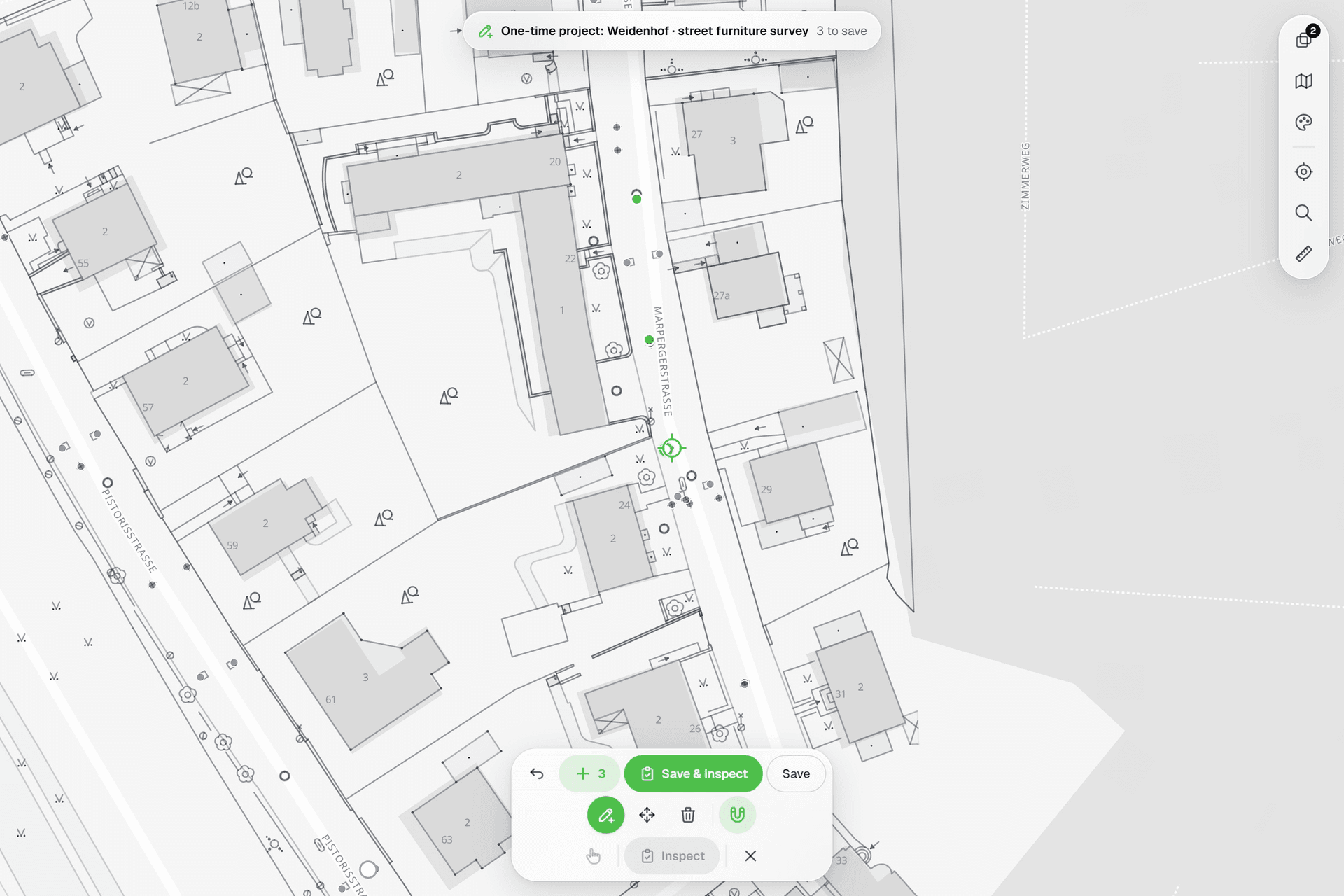 See everything on the mapPoints, lines and polygons over street maps, aerials, BGT and any CAD drawing you upload as reference. Place and correct geometry with a crosshair that snaps to the drawing.
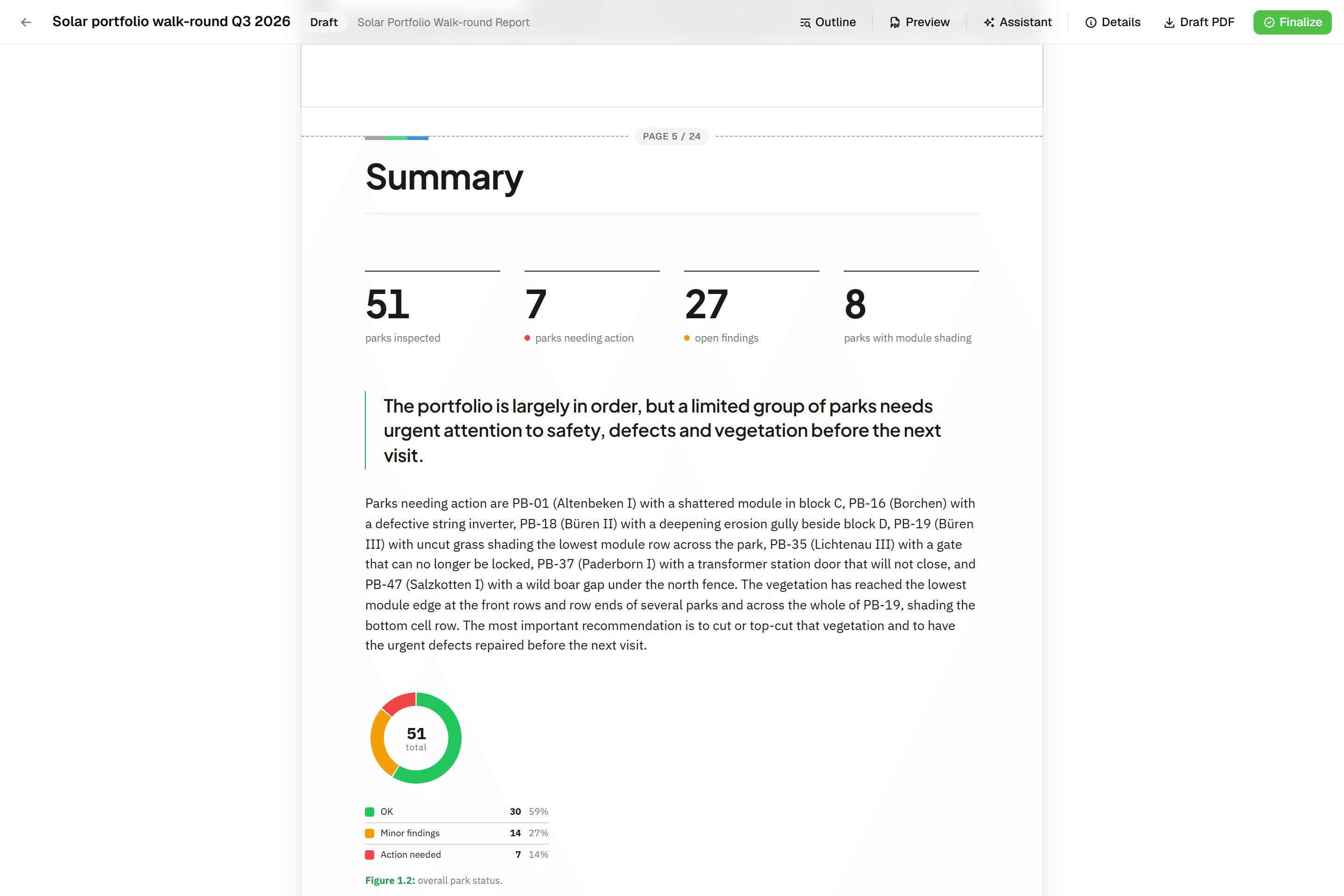 Reports that assemble themselvesBlock-based reports with live data tables, photo appendices, map figures and an AI assistant. Live PDF preview; finalize to an immutable PDF, revise as rev. B.
Try it on your own data
Set up a project and see your own data on the map. Free for 14 days, no credit card.
No credit card requiredFree trial included