

Capture and edit features on the map
Place, move and reshape points, lines and polygons over aerials, BGT and the client's own CAD drawing.
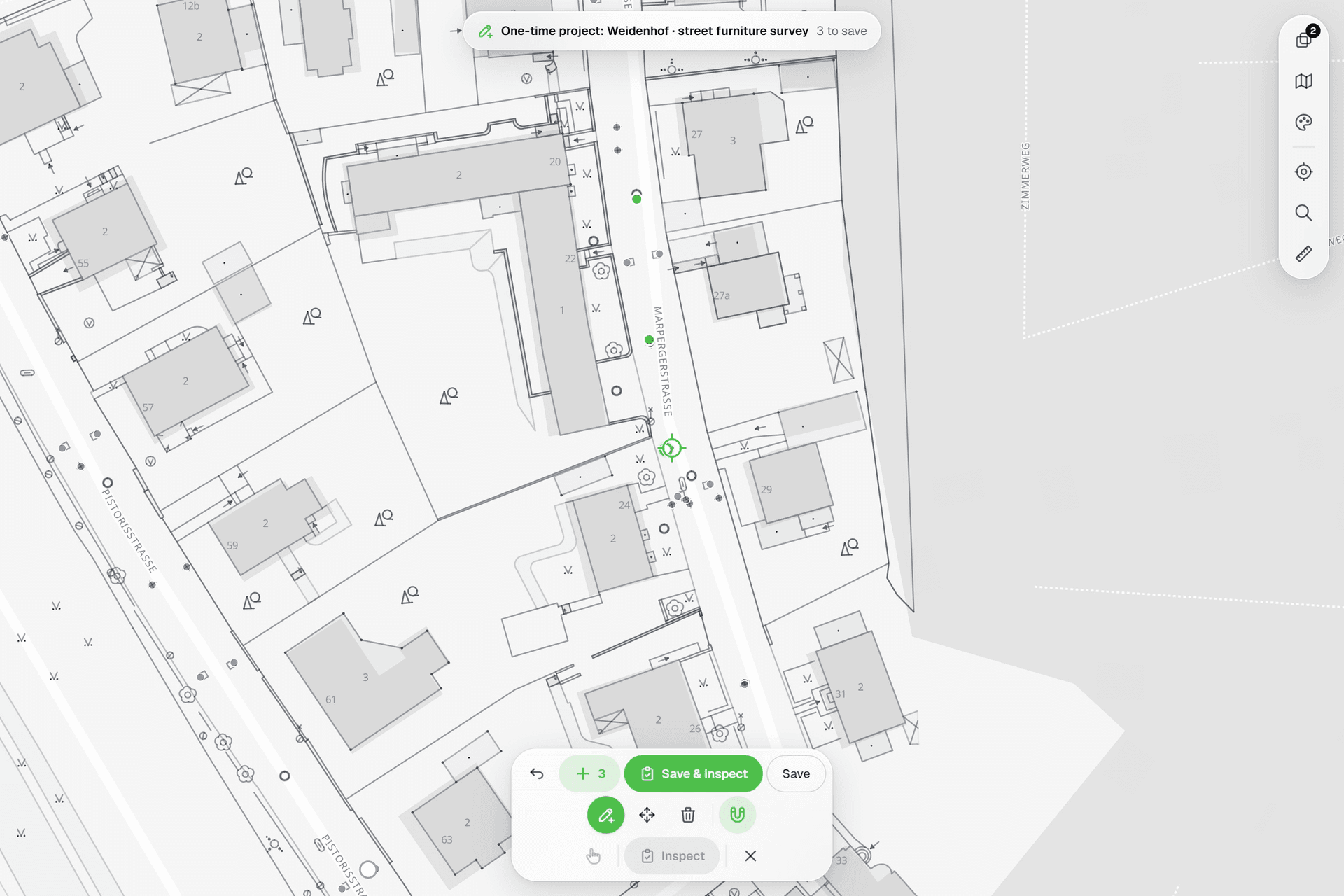
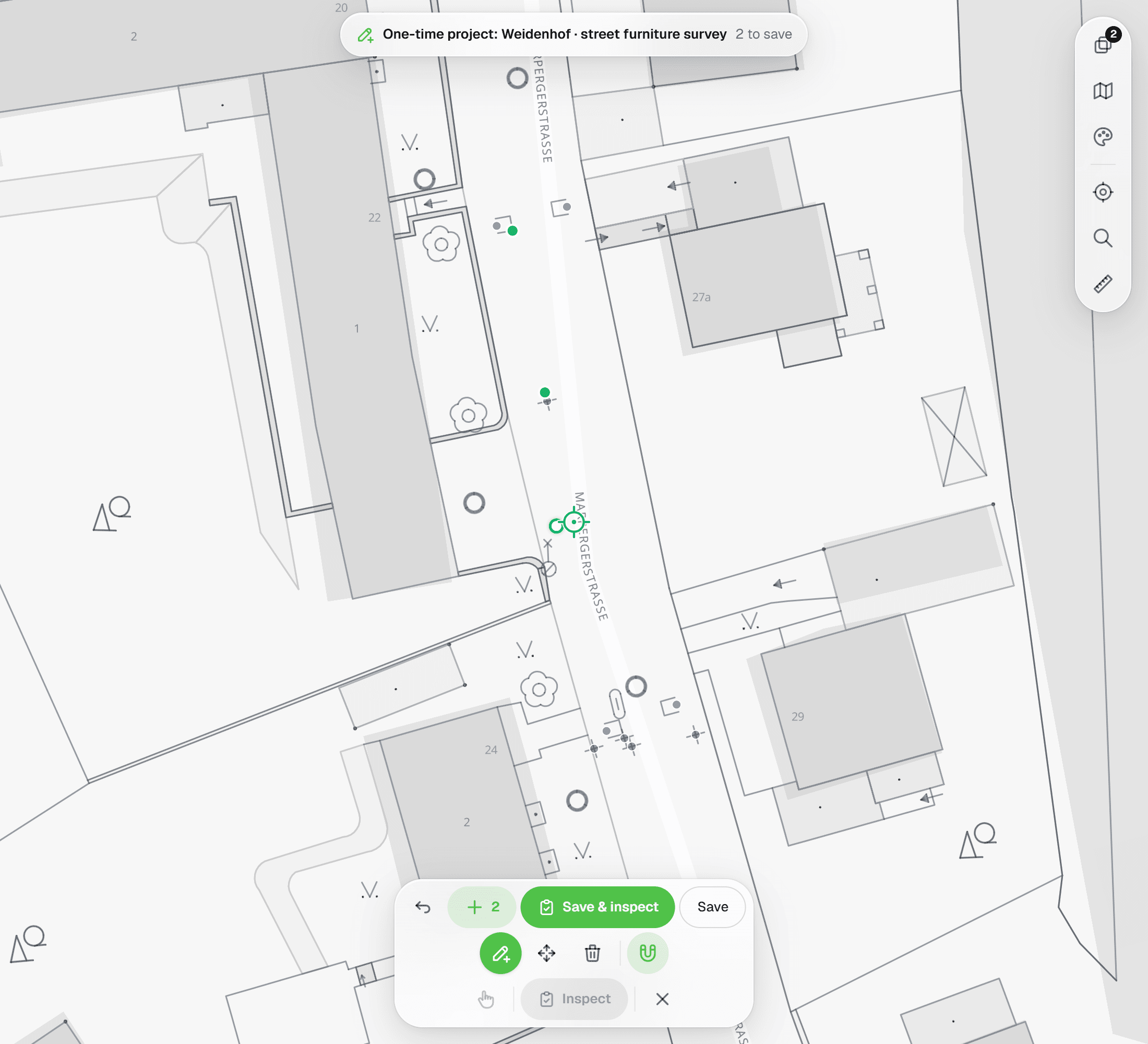
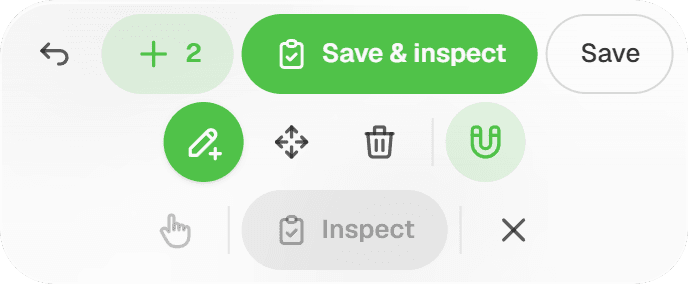
Every project in Geocadra has its own map. Features are coloured by status, reference drawings sit underneath, and a fixed crosshair with snapping puts geometry exactly where the drawing says it is. Place up to 100 points in one go and press ✓ to save them all.
The problem
Three tools for one survey
Field data tends to live in three places at once: the client's DXF, a GPS app and a spreadsheet that ties the two together by number. Every hand-over between them is a chance for a point to land on the wrong tree, a line to drift off the drawing, or a correction to never make it back to the plan. Most of the time goes into reconciling, not surveying.
The solution
One map for placing, correcting and inspecting
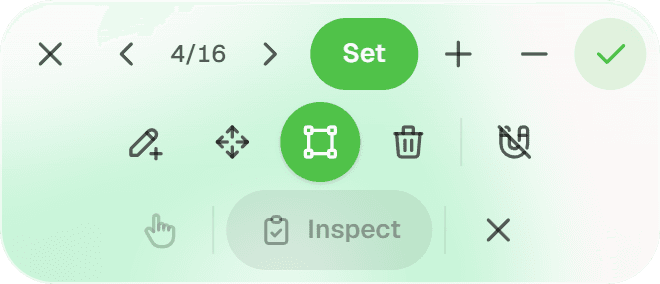
Import the client's drawing as a reference layer, pick a basemap, and work directly on top of it. The pencil opens four crosshair tools (Add, Move, Reshape and Delete), and the magnet snaps the crosshair to vertices and segments of your own features and of loaded DXF linework within 20 px. On a layer with a form, 'Save & inspect' places the point and opens the inspection in one move.
Key benefits
- Fixed crosshair: the map moves, the point stays exact
- Snaps to vertices and segments, including DXF linework
- Street and satellite basemaps, PDOK aerials, BRT and BGT as map services
- DXF, GeoPackage, Shapefile, GeoJSON, image or PDF underlays
- Status colours and per-layer marker shapes
- Place up to 100 points, save them with one ✓
How It Works
- 01
Pick a basemap and lay down references
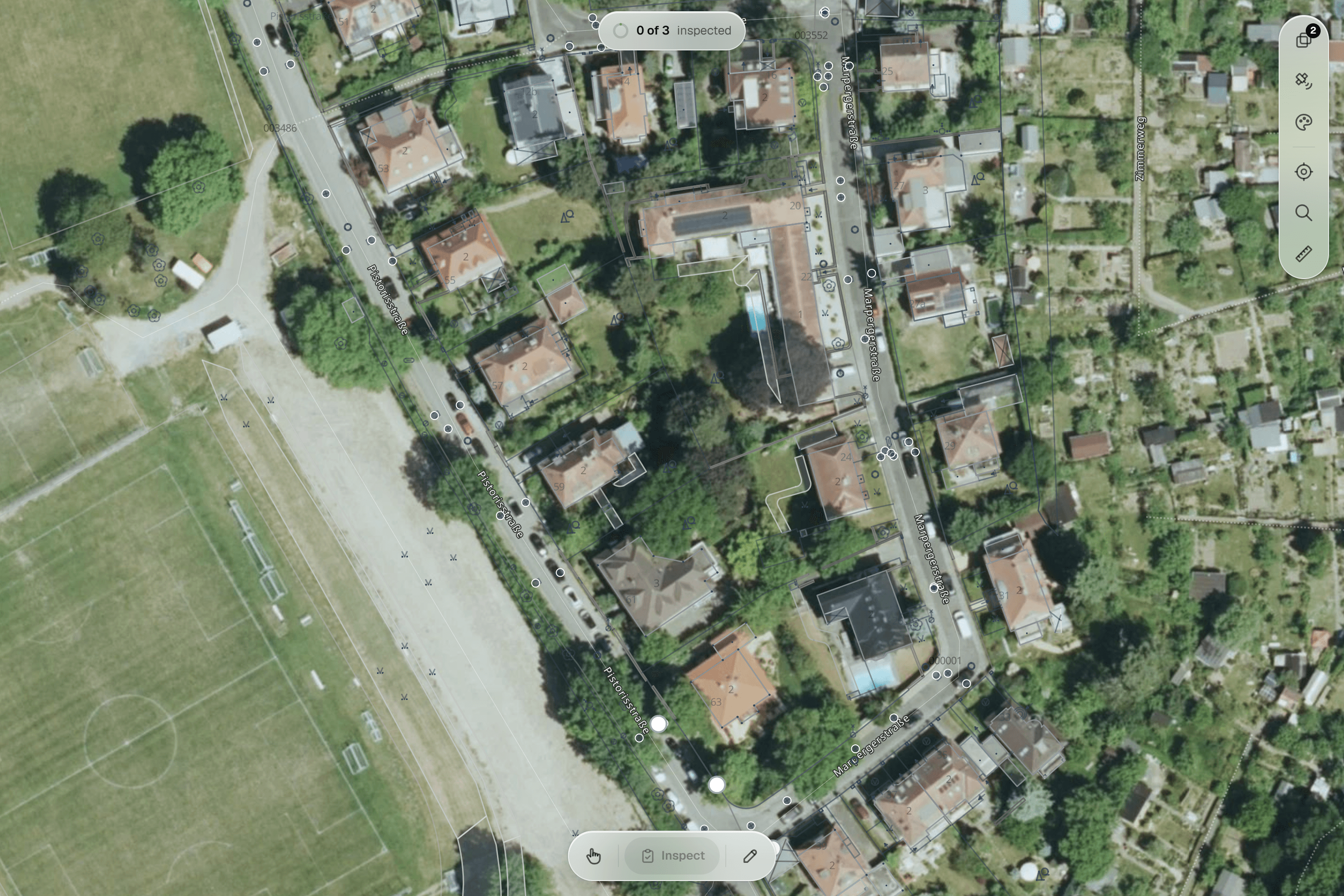
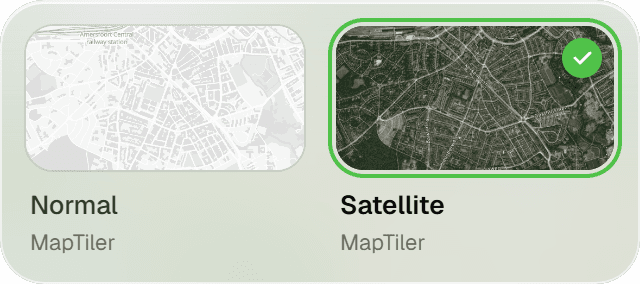
Switch between 'Normal' and 'Satellite'. PDOK services are added once for your workspace and appear in the References panel of every project map: current aerial photos at 8 cm and 25 cm, the BRT background map and the BGT, which renders from street-level zoom. In the same panel you import a DXF, GeoPackage, GeoJSON, Shapefile, image or PDF to draw against, then show or hide each reference, drag it into order and set its opacity. A scanned plan or PDF page is georeferenced on the map itself: drag, resize, rotate, and pin match points.
- 02
Add, move and reshape under the crosshair
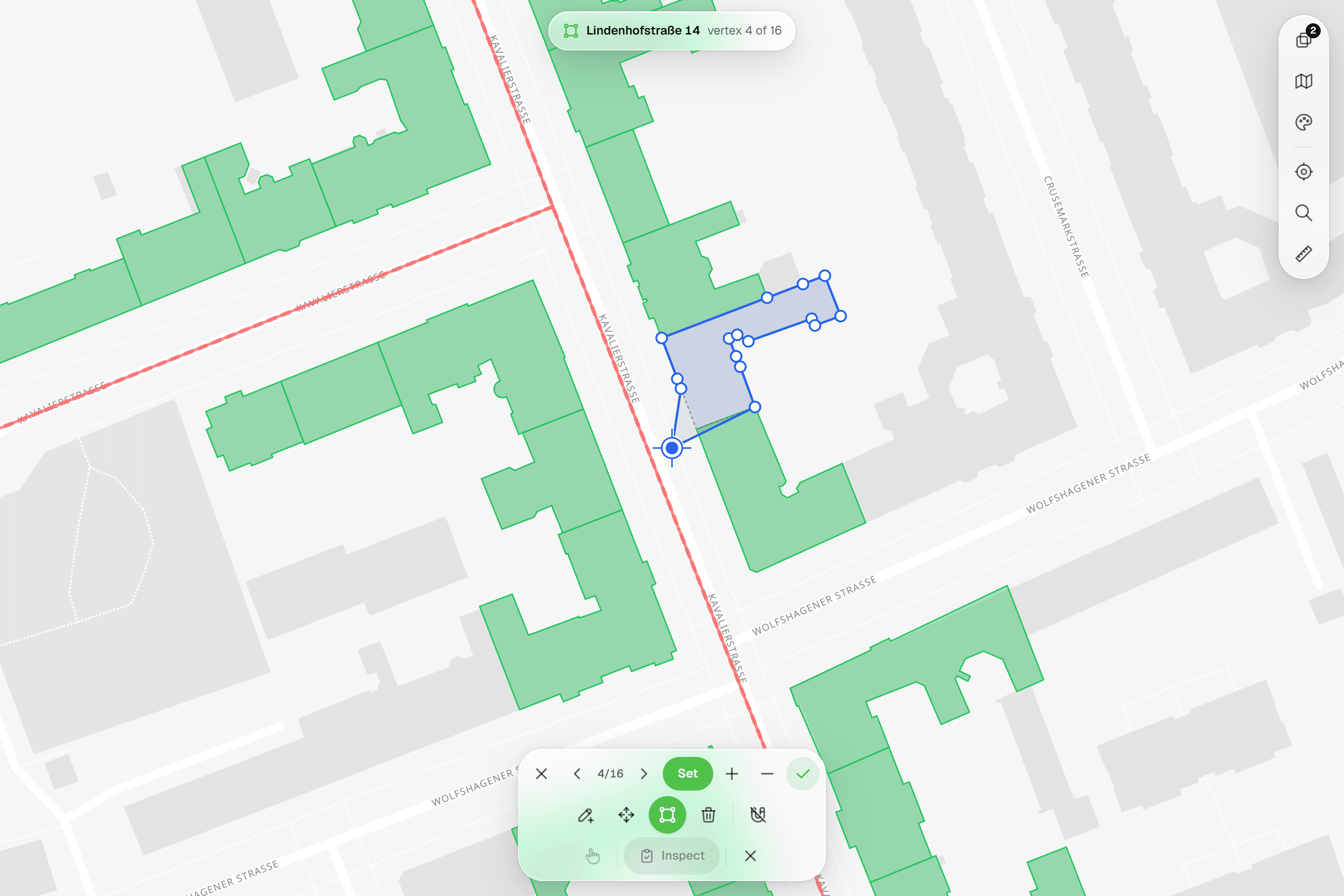
Press the pencil and choose Add, Move, Reshape or Delete for the active layer. The map pans under a fixed crosshair: with Add you aim and place point after point and ✓ saves them all, or you collect the vertices of a line or polygon with Undo. Move drags a feature with a ghost of its original position; Reshape steps through 'Vertex n/N' with Set vertex at crosshair, Insert vertex and Remove vertex. Switch the magnet on and the crosshair locks to the nearest vertex or segment within 20 px, from your own features or from vector references such as DXF linework.
- 03
Style the layer by what you measured
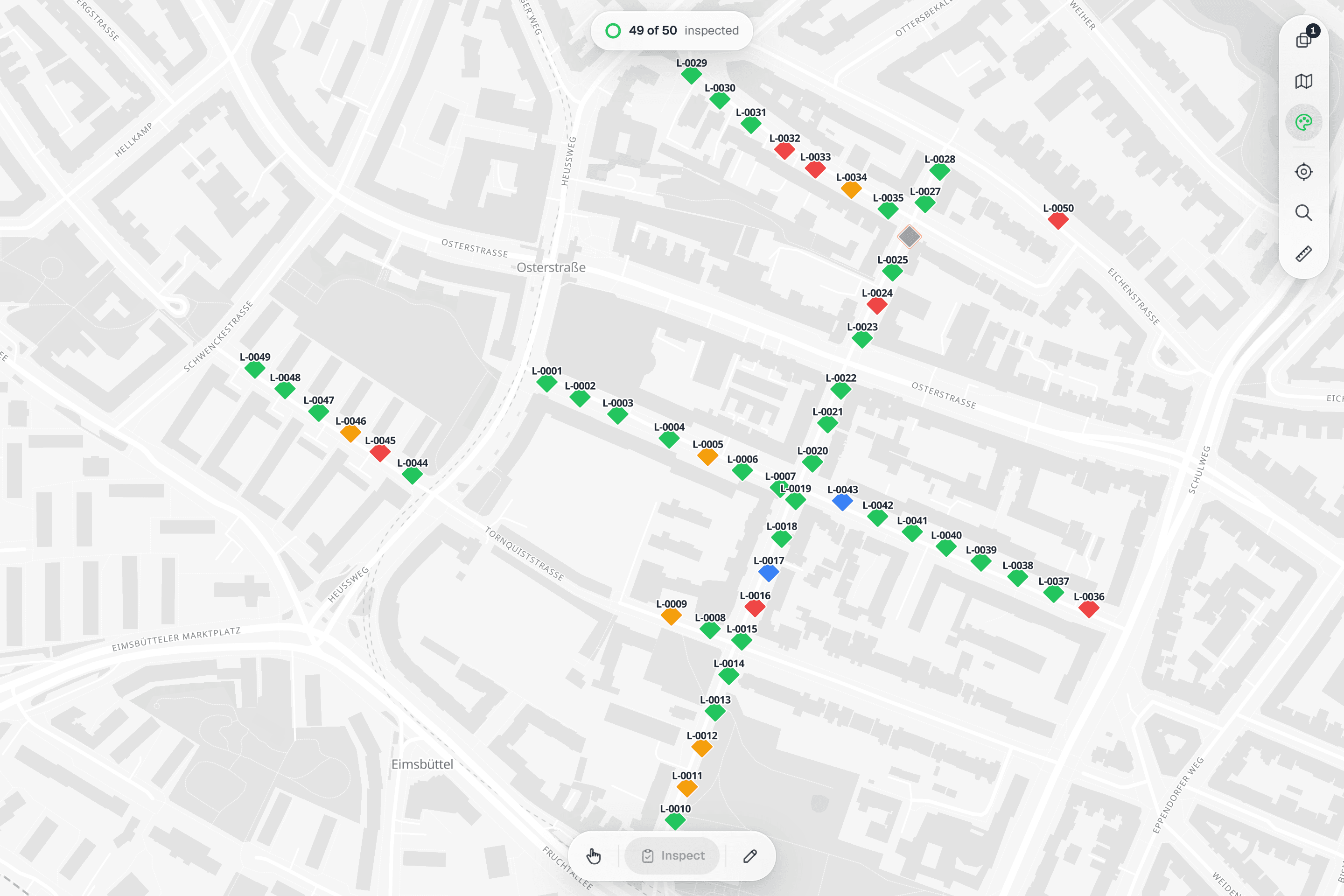
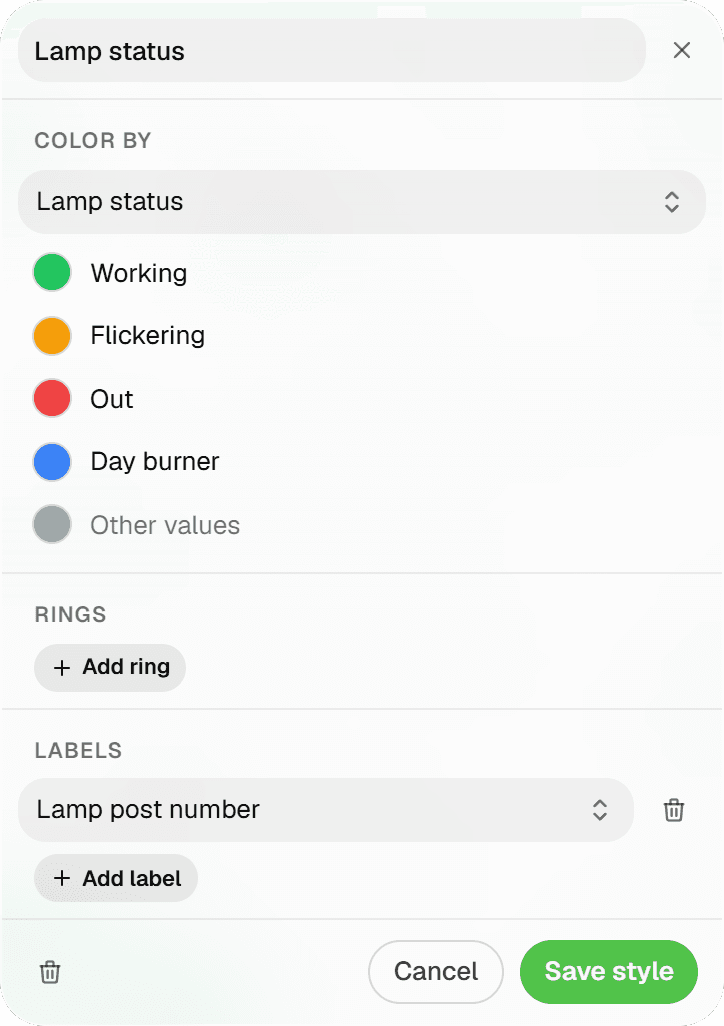
Map style presets colour features by form values: categorical (a select value → a colour), graduated (numeric stops → colour and size) and derived circles, for example a crown projection drawn from a radius field. The applied legend sits in the (i) popover, and the same presets render in the Android app. Without a preset, every feature is coloured by status: Completed green, In Progress amber, Pending hollow grey, Skipped red outline. Each layer keeps its own marker shape: circle, square, triangle, diamond or star.
Common Use Cases
- 01
Trees on the landscape architect's plan
Import the planting plan as a DXF reference, snap each new tree to its circle in the drawing, and let a derived-circle preset draw crown projections from the measured radius. The drawing stays untouched; your layer sits on top of it.
- 02
Correcting positions after a site visit
An imported point that sits two metres off is moved under the crosshair with its original position shown as a ghost. A path that takes a different route gets its vertices reshaped one by one, with no round trip through CAD.
- 03
Areas and routes, not just points
Draw maintenance polygons and inspection routes vertex by vertex with the aerial photo or the BGT underneath, snapping to kerb lines and building outlines in the client's DXF where they exist.
- 04
Batch work from a rectangle
Drag a rectangle over a row of lampposts, read '12 selected' in the pill at the top of the map, and inspect them in one pass or change their status together. Selections stay within one form automatically, so a batch always gets one sheet.
Frequently Asked Questions
Which coordinate system do I work in?
You don't pick one to capture. On import, Geocadra detects the coordinate system from the AutoCAD GEODATA block or, for Dutch drawings, from the coordinate range, and lets you switch the 'Source CRS' with a live re-projected preview. On DXF, Shapefile or GeoPackage export you choose the target: RD New (EPSG:28992), WGS 84, ETRS89 UTM 31N/32N, Belgian Lambert 72, Web Mercator or a searchable catalog of European systems.
Does it use my GPS position?
The utility rail has a GPS button, and the Android app has a follow mode that updates your position every 2 seconds with a coordinate readout. Placement itself is always by crosshair: you decide where the point lands against the aerial photo or the snapped drawing, rather than trusting a phone fix.
What does snapping snap to?
Vertices first, then segments, within 20 px on screen, taken from project features and loaded vector reference layers such as DXF linework. Each layer row has its own snappable toggle, the magnet is off by default and your choice is remembered. Rasters and map services (aerial photos, BGT, scanned PDFs) are images, so there is nothing to snap to.
What can't be edited yet?
Multi-part geometries (MultiPoint, MultiLine, MultiPolygon) can't be moved or reshaped yet, and points are moved rather than reshaped. Points, lines and polygons are otherwise edited from true geometry, never from tile-clipped shapes.
Can I bring the client's drawing along?
Yes. The References panel on the project map accepts DXF and DWG (converted to DXF on upload), GeoPackage, zipped Shapefile, GeoJSON, KML, GPX, GML and CSV, plus PNG, JPEG and PDF for georeferencing, up to 80 MB per file. A reference can later be promoted with 'Convert to layer' per geometry group (Points, Lines, Polygons), which turns it into editable project features.
Can I do this on a tablet or phone?
The Android app (early access, by invitation) has the same edit mode: Add with crosshair placement and batch points, Move, Reshape, Delete and the 20 px snapping magnet. Tablets rotate freely; phones stay portrait. Android only for now.
Explore More Features
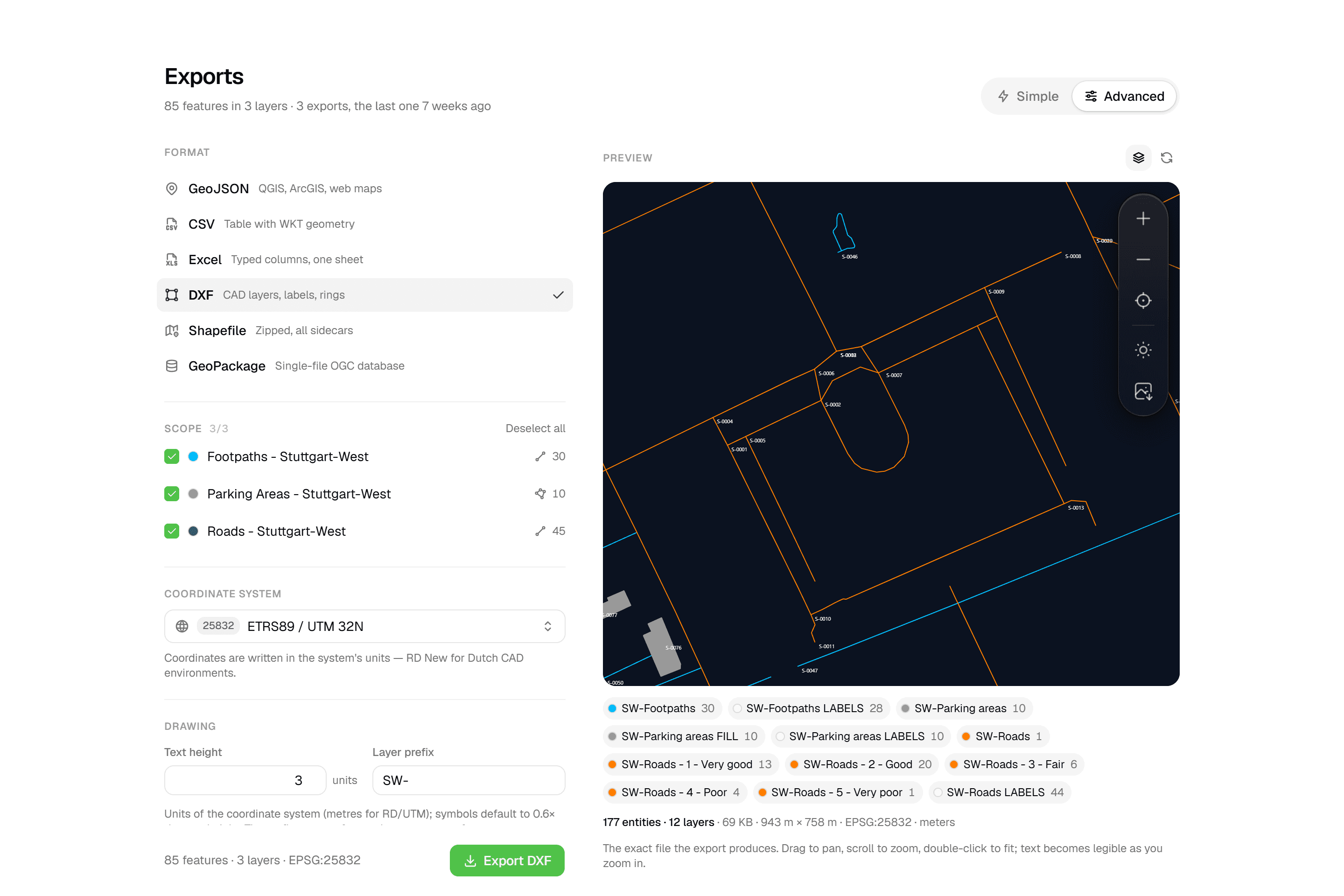 CAD-ready DXF, plus five data formatsLayered DXF with labels, rings and fills, previewed in the browser before you download. GeoJSON, CSV, Excel, Shapefile and GeoPackage on every plan.
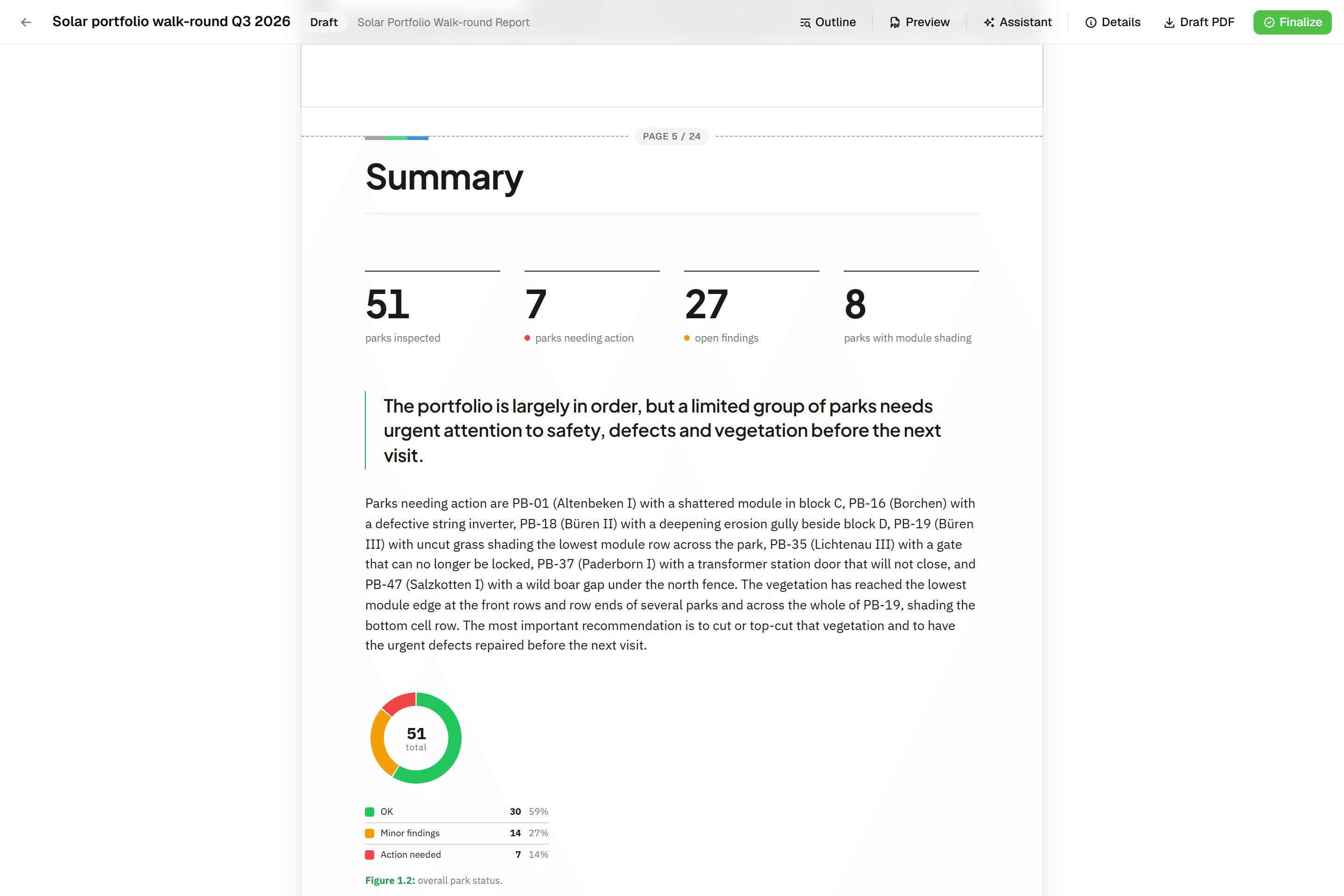 Reports that assemble themselvesBlock-based reports with live data tables, photo appendices, map figures and an AI assistant. Live PDF preview; finalize to an immutable PDF, revise as rev. B.
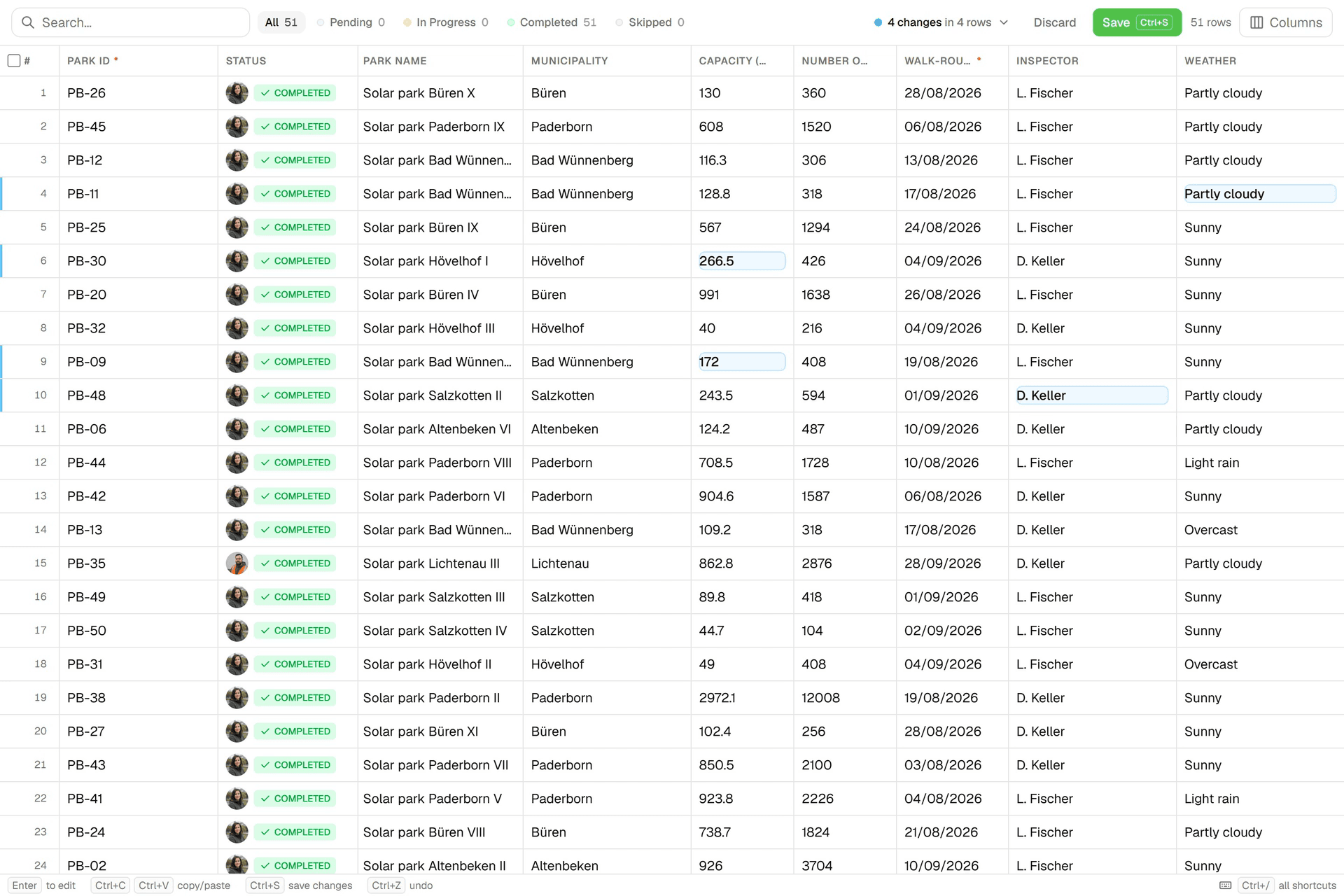 Edit data like a spreadsheetAn Excel-like grid per layer: paste from Excel, fill down, filter, bulk-edit. Review every change before you save; each save lands in the feature's version history.
Try it on your own data
Set up a project and see your own data on the map. Free for 14 days, no credit card.
No credit card requiredFree trial included